
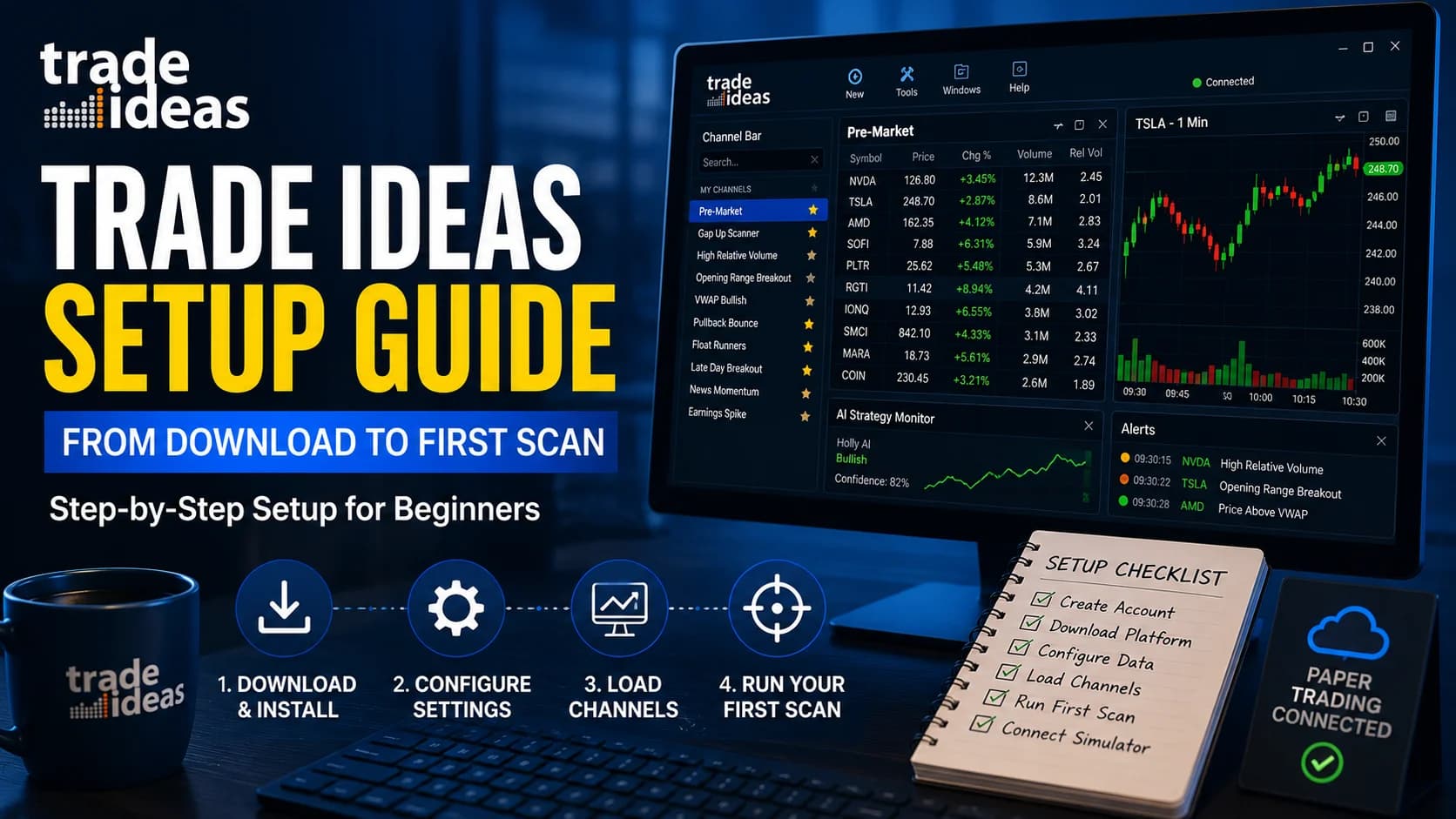
Trade Ideas has a strange reputation problem: almost everyone agrees it's one of the most powerful scanning platforms available, and almost everyone agrees the first week feels like being handed the keys to a cockpit. Both things are true. The platform's official documentation covers every feature in detail — but it documents features individually, and what a new subscriber actually needs is an ordered path: do this first, then this, and don't touch that yet.
That's what this guide is. Drawing on Trade Ideas' official user guide and documentation, it walks through the complete setup in the order that actually works — from account creation and system requirements through installation, first launch, your first working scans, and the paper-trading connection you should make before anything else. By the end, you'll have a functioning workspace and a sensible week-one plan, without the flailing that makes most people's first days on the platform miserable.
How do you set up Trade Ideas? Setting up Trade Ideas takes four stages: create an account and confirm non-professional data status, install the Windows desktop platform (or choose a Mac workaround or the web version), load preconfigured channels from the Channel Bar instead of building scans from scratch, and connect the built-in simulator for paper trading before risking capital. Most beginners can be operational within an hour.
Before You Install: The Account Decisions That Matter
Two things are worth getting right at signup, because they're the ones beginners most often second-guess later.
The professional vs. non-professional question. During registration, you'll certify your data status. If you trade your own money and don't work in the securities industry, you're a non-professional — and Trade Ideas covers the exchange fees for your real-time data as part of your subscription. Professional subscribers (industry employees, those trading firm capital) pay NYSE, AMEX, and NASDAQ exchange fees separately. Most retail traders reading this are non-professionals, and it's worth knowing that the real-time data most platforms bill $40–60 a month for is bundled into your Trade Ideas price. Answer the certification honestly; misclassifying yourself to dodge fees is a compliance problem, not a discount.
The plan question. Trade Ideas runs two paid tiers — The Core with real-time scanning, charting, and paper trading, and The Apex, which adds the full AI stack including Holly's signals. This guide won't re-litigate which one fits you — the Trade Ideas review covers that decision in depth, and current pricing and active discount codes are maintained on the deals page. Two setup-relevant notes, though. First, everything in this guide works on either paid tier — the setup path doesn't change. Second, if you're not ready to commit at all, the periodic low-cost Test Drive gives you full access for about two weeks, and this entire guide works as a Test Drive itinerary.
Once your account exists, you're ready to download the platform — but check the hardware section first, especially if you're on a Mac.
System Requirements (And the Mac Question)
Trade Ideas Pro is a Windows-native desktop application, and it's genuinely resource-hungry — it's processing every tick in the U.S. market in real time. The official documentation gives three hardware tiers, and they're worth taking seriously:
- Tier
- Minimum
- Processor
- 1.5 GHz dual/quad core
- RAM
- 4 GB
- Realistic for
- One or two windows; expect lag on busy opens
- Tier
- Preferred
- Processor
- 2.0 GHz multi-core
- RAM
- 8 GB
- Realistic for
- A normal multi-window workspace
- Tier
- Ideal
- Processor
- 2.5 GHz+ multi-core
- RAM
- 16 GB
- Realistic for
- Full layouts, charts, and AI windows without strain
| Tier | Processor | RAM | Realistic for |
|---|---|---|---|
| Minimum | 1.5 GHz dual/quad core | 4 GB | One or two windows; expect lag on busy opens |
| Preferred | 2.0 GHz multi-core | 8 GB | A normal multi-window workspace |
| Ideal | 2.5 GHz+ multi-core | 16 GB | Full layouts, charts, and AI windows without strain |
The operating system needs to be Windows 10 or 11. If your machine sits at the minimum tier, the platform will run, but the experience during a volatile market open — exactly when you need responsiveness most — will frustrate you. Treat "preferred" as the practical floor.
If you're on a Mac, you have four documented routes, in rough order of how well they work:
- Virtualization — run Windows inside macOS with Parallels or VMware Fusion (or Boot Camp on older Intel Macs). This is the route most Mac-based Trade Ideas users take. It works well, but it costs extra (the virtualization software plus a Windows license) and adds setup time.
- A cloud Windows machine — services like Windows 365 or an AWS instance give you a Windows desktop streamed to any device. Elegant, but you're paying a monthly fee and depending on your connection quality.
- The web version — no installation at all, covered next.
- A dedicated cheap Windows machine — not in the official docs, but a practical option plenty of traders use: a modest Windows laptop that does nothing but run Trade Ideas.
The web version tradeoffs, honestly. Trade Ideas' browser-based version gives you the full alert and filter library — all of the scanning power — with no installation, on any operating system. What it lacks matters, though: no Brokerage Plus (so no one-click or automated execution), no External Linking to other platforms, a five-chart maximum, and sound alerts but no voice alerts. For a beginner's first weeks, the web version is a legitimate way to start — the scanning is the product, and it's all there. But the desktop platform is where the full workflow lives, and advanced features like the AI systems assume you're on it. If you're a Mac user planning to get serious, budget for virtualization.
Download and Install: Two Gotchas Worth Knowing
The download itself is straightforward — log into your account and grab the installer. Two documented details save real frustration:
Production vs. beta. Trade Ideas offers two versions of the desktop software: the production release and a beta with the newest features. As a beginner, take the production version. The beta is stable enough that active users run it daily, but your first weeks will involve enough new variables without adding "is this a bug or am I doing it wrong?" to the list. You can switch later once you know how the platform is supposed to behave.
Install as Administrator, launch from the desktop icon. The official guide is explicit on both points: run the installer with Administrator rights, and launch the platform from the desktop icon it creates — not from a taskbar pin or a custom shortcut. This sounds trivial and trips up a surprising number of new users, because launching from the wrong place can cause the platform to misbehave in ways that look like account problems. If Trade Ideas ever acts strangely on startup, "did I launch from the desktop icon?" is the first question to AskThe ask is the lowest price a seller is currently willing to accept. When you buy with a market order, you pay the ask.Read definition →, before you email SupportSupport is a price level where buying pressure has historically overcome selling pressure, causing price to stop declining and reverse — it's the floor where demand enters the market, and when it holds, it's a potential long entry; when it Read definition →.
One more small detail: your login is case-sensitive. If your credentials are rejected on first launch, check your caps lock before assuming the account is broken.
When the platform opens for the first time, you'll see the Toolbar — a slim command strip — and not much else. That emptiness is the moment most beginners make their first mistake, which brings us to the most important section in this guide.
First Launch: Don't Build — Load
Here's the single best piece of setup advice for a new Trade Ideas subscriber, and it comes straight from how the platform is designed to be learned: do not start by building your own scans. Start by loading the pre-built ones.
Trade Ideas ships with over 40 preconfigured Channels — complete, professionally assembled workspaces, each built around a trading focus: momentum, gappers, high-VolumeVolume is the total number of shares (or contracts) traded during a given time period — it's the primary confirmation tool for all price action, because a price move accompanied by high volume indicates genuine market participation, while tRead definition → movers, and dozens more. Loading one instantly populates your screen with working alert windows, top lists, and charts that are already correctly configured and talking to each other.
To load them: from the Toolbar, go to New → Channel Bar (or Docked Channel Bar if you prefer everything in one contained window — more on that distinction below). Pick a channel that matches how you imagine trading, and watch a complete workspace assemble itself.
Why this matters more than it sounds: the Channel Bar is reverse-engineering material. Every window a channel opens is a working example of correct configuration. When you eventually want to know how a momentum scan should be filtered, you won't be guessing from a blank slate — you'll be opening the configuration of a professionally built one and reading what it does. Spend your first days trading channels in the simulator and studying how their windows are put together. It's the difference between learning a language from conversation and learning it from a grammar textbook.
Understanding the Windows: The Mental Model
Trade Ideas is a windowing platform — your workspace is a collection of specialized windows, each doing one job. Beginners drown when they treat every window as equally important. Three window types do most of the work, and understanding the division of labor is the platform's core mental model:
Alert windows are your doorbell. An alert window is a real-time scanner: you define conditions, and it streams a new row the moment any stock in the market meets them. It answers the question "what is happening right now that I care about?" This is the window type Trade Ideas is famous for, and the one you'll eventually customize most.
Top list windows are your leaderboard. A top list is a ranked, continuously refreshing table — biggest gainers, highest Relative VolumeRelative volume (RVOL) compares a stock's current trading volume to its average volume for the same time of day, expressed as a multiple — a stock with 5x RVOL is trading five times more actively than normal, signaling unusual interest and Read definition →, largest gaps. It answers "what are the strongest candidates right now?" Where an alert window fires on events, a top list maintains standings.
Chart windows are your context. Alerts and top lists find candidates; charts tell you whether the candidate is actually worth your attention. Trade Ideas' charts support the platform's own overlays, and linking a chart window to an alert window means clicking any alert instantly loads that stock's chart.
Everything else — Multi-Strategy windows, Compare Count, Price Alerts, the AI windows — builds on this trio. When you open a window's configuration (right-click and choose configure), you'll find the same tabbed structure everywhere: strategy presets, alert selection, window-specific filters, exchanges, symbol lists, and column layout. You don't need to master those tabs on day one. You need to know they exist, because that config window is where every customization you'll ever make lives.
Your First Custom Scan: Two Paths
After a few days of trading pre-built channels, you'll hit the natural next step: "I want a scan that does exactly what I have in my head." As of July 2026, there are two ways to get there, and the right answer for most beginners is to use both.
Path one: describe it to the AI Assistant. Trade Ideas' newest feature is a conversational AI Assistant that builds alert windows and top lists from plain-language descriptions, typed or spoken. Open it from the top of the New menu, describe what you want — "stocks under $20, up at least 4% today, on three times normal volume" — and it generates the configured window. For a beginner, this collapses what used to be the platform's steepest wall: you no longer need to know which of the 500+ filters express your idea before you can build with them.
Path two: open the configuration window and build it by hand. The traditional route still matters, and not for nostalgic reasons. Right-click any alert window, open the configuration, and assemble the scan filter by filter. It's slower, and that's the point — it's how you learn what the filters actually are.
The workflow this guide recommends: generate with the Assistant, then open what it built and read the configuration. Check that the filters match what you meant, and notice which filters it chose — that inspection loop is simultaneously your quality control and your filter education. The Assistant can also work in reverse: paste in the configuration string of any pre-built channel scan and ask it to explain the settings in plain English, which turns those 40+ channels into annotated study material. And when you're ready to build with proven blueprints instead of blank-page ideas, our five momentum scan recipes for Trade Ideas provide exact alert-and-filter stacks with the reasoning behind every component.
One expectation to set now, because it protects both your account and your learning: a scan that's easy to build is not automatically a scan worth trading. The Assistant makes expressing an idea nearly instant; validating the idea still requires testing, and that's what the next section is for.
Connect the Simulator Before Anything Else
Before your setup is "done," make one more connection: the built-in paper-trading simulator. This is the step beginners skip most often, and it's the one that determines whether your first months on the platform cost you tuition or capital.
Trade Ideas' simulated trading runs through the same Brokerage Plus module that handles live broker connections — open Brokerage Plus, and under the brokers tab, connect to the Trade Ideas Simulator instead of a live brokerage. The critical detail: the simulator runs on live market data. You're practicing against the real market in real time, with the same windows, the same alerts, and the same execution interface you'd use with money on the line — just without the money.
The DisciplineTrading discipline is the consistent application of your predefined rules — entries, stops, targets, position sizing, maximum daily loss — regardless of what you're feeling in the moment.Read definition → this enables is simple: every scan you build, every channel you load, and every idea you have gets traded in the simulator first. Not because the platform is untrustworthy, but because you are — every new trader is, on a new platform, and the honest ones budget for it. Two to four weeks of simulated trading is the commonly recommended runway before connecting a live broker, and nothing about your setup is complete until the simulator connection works.
When you're eventually ready for live execution, the same Brokerage Plus module connects to Interactive Brokers, E*TRADE, TradeStation, and Alpaca. That's a later chapter — deliberately.
Layouts: Save Your Work (And Pick Your Style)
Two housekeeping items turn your assembled workspace into something permanent.
Free-floating vs. docked. Trade Ideas windows can float freely across your monitors or live docked inside one master window — and the two modes can be combined. Multi-monitor traders tend to float; single-screen and laptop traders usually prefer docking, which keeps everything contained and prevents the where-did-that-window-go problem. The setting lives at Tools → Options → Layouts, where "Open in Dock window" controls the default behavior for new windows. There's no right answer; there's only your screen setup.
Save your layout. Once your workspace looks the way you want — channels loaded, charts linked, simulator connected — save the layout. Trade Ideas supports saving layouts to the cloud, which means your workspace follows your account rather than living on one machine. Get in the habit immediately: a workspace you spent an hour arranging and didn't save is an hour you'll spend again.
The Week-One Plan
Here's the ordered path, assembled from everything above. Trade Ideas' own onboarding materials estimate the basics take about 30 minutes of video; a realistic beginner should budget a week of light structure:
Day 1: Install (production version, Administrator, desktop icon). Watch the official 10-episode Getting Started series — it runs about 30 minutes total. Load your first Channel from the Channel Bar. Connect the simulator through Brokerage Plus.
Days 2–3: Trade one pre-built channel in the simulator during market hours. Don't customize anything yet — your job is watching how alert windows, top lists, and charts behave when the market is moving.
Day 4: Build your first custom scan with the AI Assistant, then open its configuration and study what it selected. Paste one pre-built channel scan into the Assistant and have it explained.
Day 5: Attend the live daily Q&A — Trade Ideas runs a one-hour session with a trader educator every trading day at 12 pm ET on its YouTube channel — and drop into Barrie's free trading room, where the platform is used live every session and the chat is full of people who were beginners recently enough to remember what confused them.
The weekend: Save your layout, prune the windows you aren't using, and write down the one setup you want to focus on. A workspace built around one idea beats a cockpit of twelve windows you half-understand.
If you're still in the evaluation stage rather than the subscriber stage, this same plan compresses neatly into a Test Drive window — and if you're not sure the platform fits you at all, the honest checklist of 5 signs you're not ready for Trade Ideas is worth reading before you spend anything.
Frequently Asked Questions
Can I run Trade Ideas on a Mac?
Virtualization is the route most Mac-based subscribers take: Windows runs inside macOS, and Trade Ideas runs inside that. It works well but adds the cost of the virtualization software plus a Windows license. Cloud Windows services like Windows 365 stream a desktop to any device for a monthly fee. The web version requires nothing but a browser, with the tradeoffs covered in the next question.
Key Takeaway: Budget for Parallels or an equivalent if you're a Mac user planning to use the full desktop platform seriously.
Is the Trade Ideas web version good enough to skip the Windows install?
The web version is a legitimate starting point, especially for Mac users and anyone evaluating the platform, because the core scanning product is fully present. What's missing is execution and integration: no one-click or automated trading, no linking symbols out to other platforms, and a five-chart ceiling that active traders outgrow quickly. Sound alerts work; voice alerts don't.
Key Takeaway: Start on the web version if installation is a barrier, but plan on the desktop platform for the complete workflow.
Should I download the production or beta version?
Trade Ideas maintains both tracks, and experienced users often run the beta to get features early. The learning argument for production is about isolating variables: while everything on the platform is new to you, you want the software itself to be the one thing you can fully trust. Switch to the beta later if a specific feature pulls you there.
Key Takeaway: Production version first; revisit the beta once you know how the platform is supposed to behave.
Why is Trade Ideas acting strangely after installation?
The official documentation is explicit that installation requires Administrator rights and that the platform should be launched from the desktop icon it creates — not a taskbar pin or custom shortcut. Launching from the wrong place can produce misbehavior that looks like an account or data problem. A third mundane culprit: the login is case-sensitive, so check caps lock before assuming credentials are broken.
Key Takeaway: Reinstall as Administrator, launch only from the desktop icon, and check case sensitivity before emailing support.
Do I need to build my own scans on day one?
The Channel Bar (Toolbar → New → Channel Bar) is the designed entry point for new users, and it doubles as study material — every channel window is a working example of correct configuration you can open and read. Custom scan building comes naturally in week one, and the AI Assistant now makes that step far gentler than it historically was.
Key Takeaway: Channels first, customization second — the pre-built workspaces are both training wheels and textbook.
How do I set up paper trading in Trade Ideas?
This is the most important connection in your entire setup. The simulator uses the same windows, alerts, and execution interface as live trading, against the real market in real time — so the habits you build transfer directly. The widely recommended runway is two to four weeks of simulated trading before connecting a live broker through the same module.
Key Takeaway: No setup is complete until the simulator connection works — trade everything there first.
How long does it take to learn Trade Ideas?
The realistic curve: functional on day one if you lean on pre-built Channels, comfortable within a couple of weeks of simulator trading, and fluent — building and refining your own scans confidently — somewhere past the 20-hour mark. The AI Assistant has meaningfully compressed the scan-building portion of that curve, but window management and workflow design still take genuine screen time.
Key Takeaway: Follow the week-one plan above, and let the simulator weeks do the real teaching.
Where can I get live help while setting up?
The daily Q&A is genuinely useful for setup questions because you can ask about your specific configuration and watch the answer demonstrated. The free trading room runs every market session and shows the platform being used live by an educator — the fastest way to absorb how the windows are meant to work together.
Key Takeaway: The free trading room and daily 12 pm ET Q&A mean you're never learning this platform alone.
Disclaimer
Article Sources
- Trade Ideas User Guide — Download & Installation - official documentation for account creation, exchange agreements, system requirements, Mac options, web version limitations, and installation steps.trade-ideas.com
- Trade Ideas User Guide — Software Layout - official documentation for free-floating vs. docked layouts, window types, and configuration structure.trade-ideas.com
- Trade Ideas User Guide — Getting Started Series - the official 10-episode onboarding series, daily live support schedule, and support contacts.trade-ideas.com
- Trade Ideas User Guide — Main Index - the complete official documentation set referenced throughout this guide.trade-ideas.com