
There's a GapA gap is a price discontinuity on a chart where a stock opens significantly higher or lower than the previous session's close, leaving a visible empty space — gap-ups are driven by overnight buying pressure or positive news; gap-downs by seRead definition → in most day traders' workflow that nobody talks about until it costs them money: the seconds between finding a trade and taking it. Your scanner fires, you alt-tab to your broker, type the symbol, set the size, place the order — and the entry you wanted is gone. Momentum TradingMomentum trading is an approach that identifies stocks moving strongly in one direction — usually driven by a catalyst, high relative volume, and expanding price range — and enters in that direction, riding the move for as long as momentum Read definition → punishes that gap ruthlessly, because the setups that matter most are precisely the ones that don't wait.
Brokerage Plus is Trade Ideas' answer to that gap, and it's the module that turns the platform from a discovery tool into a complete workflow. This review covers what it actually is, how each of the four supported broker connections works (including the quirks the marketing pages skip), the built-in simulator that's quietly its most valuable component, and the automated trading layer — with the safety rails Trade Ideas built in and the honest risks that remain. Everything here is drawn from the official documentation, with the details that determine whether the module fits your trading.
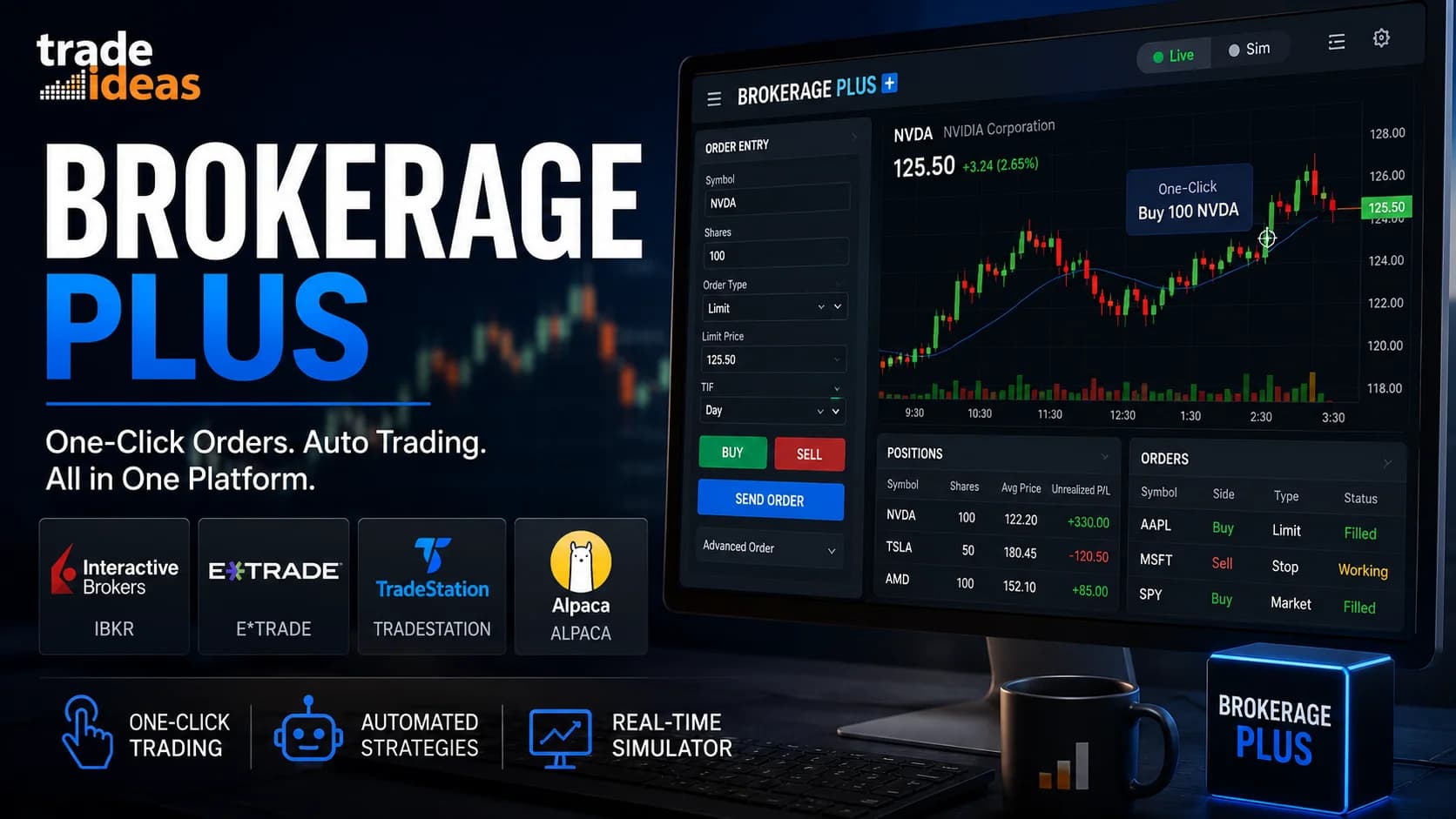
What is Trade Ideas Brokerage Plus? Brokerage Plus is the order execution and position management module inside Trade Ideas. It connects the platform directly to Interactive Brokers, E*TRADE, TradeStation, or Alpaca, enabling one-click order entry from charts and scanners, fully automated strategy trading, and access to a real-time simulator for testing strategies without capital at risk.
What Brokerage Plus Actually Is
The official documentation calls Brokerage Plus "the control center for all your orders and positions," and that's the right mental model. It's one module doing three jobs.
Execution. With a participating broker connected, orders go out directly from inside Trade Ideas — one-click order entry from charts and from scanner alerts, including drag-and-drop order placement on the charts themselves. The workflow gap described above closes: the alert, the chart check, and the order all happen in the same platform.
Position management. Open positions, orders, and fills are visible and manageable in one place, regardless of which connected account they sit in. The module runs in two modes from the Toolbar — Brokerage Plus Live and Brokerage Plus Sim — and the button you press determines whether real money is involved, which is exactly the kind of explicit separation you want in software that can place orders.
Automation. Brokerage Plus is where Trade Ideas' automated trading lives: any alert window strategy can be loaded in and executed automatically as its alerts fire — with meaningful guardrails, covered in detail below. This is also the plumbing that Holly's one-click execution and the Money Machine's autonomous trading run through; if you've read our Holly AI breakdown or the Money Machine guide, Brokerage Plus is the execution layer both of them assume.
One placement note before going deeper: the Brokerage Plus module itself ships on both paid tiers, while automated strategy trading belongs to the Premium tier's AI stack — plan details and current pricing are maintained on the deals page.
The Four Broker Connections (And Their Real-World Quirks)
Brokerage Plus connects to four brokers: Interactive Brokers, E*TRADE, TradeStation, and Alpaca. The connections are not identical — each has documented requirements that are worth knowing before you pick a broker around this feature.
- Broker
- Interactive Brokers
- Connection style
- API through Trader Workstation (TWS)
- The quirk worth knowing
- Requires an IB Pro account — IB Lite blocks API connections entirely. TWS must be configured and running.
- Broker
- E*TRADE
- Connection style
- Browser-based API authorization
- The quirk worth knowing
- Requires purchasing a live data plan from E*TRADE — without it, quotes and fills won't function.
- Broker
- TradeStation
- Connection style
- Web pass-through login
- The quirk worth knowing
- The smoothest of the four: log in once via browser, portfolio syncs automatically, and TradeStation doesn't need to stay open.
- Broker
- Alpaca
- Connection style
- API connection
- The quirk worth knowing
- The commission-free, API-native option — popular specifically for automation.
| Broker | Connection style | The quirk worth knowing |
|---|---|---|
| Interactive Brokers | API through Trader Workstation (TWS) | Requires an IB Pro account — IB Lite blocks API connections entirely. TWS must be configured and running. |
| E*TRADE | Browser-based API authorization | Requires purchasing a live data plan from E*TRADE — without it, quotes and fills won't function. |
| TradeStation | Web pass-through login | The smoothest of the four: log in once via browser, portfolio syncs automatically, and TradeStation doesn't need to stay open. |
| Alpaca | API connection | The commission-free, API-native option — popular specifically for automation. |
The Interactive Brokers connection deserves the most attention because it's the most popular and the most configuration-heavy. Per the official guide: TWS needs API access configured through its Global Configuration menu, the socket ports must match on both sides (7496 for a live account, 7497 for paper — a mismatch is the classic failed-connection cause), the "allow connections from localhost only" box should stay checked, and TWS itself has to be running before Trade Ideas connects. There's also a decision embedded in the TWS "Bypass" checkboxes: checked, your orders execute immediately without confirmation prompts; unchecked, IB asks you to confirm each order Trade Ideas sends. Speed versus a safety net — and for your first weeks, the safety net is the right call.
None of this is difficult, but it is fiddly, and it's the part of Brokerage Plus where most SupportSupport is a price level where buying pressure has historically overcome selling pressure, causing price to stop declining and reverse — it's the floor where demand enters the market, and when it holds, it's a potential long entry; when it Read definition → questions live. Budget twenty careful minutes for the first IBKR connection, and remember the module's preferences include an auto-reconnect option once everything works (with the documented caveat that your broker platform must already be running when Brokerage Plus opens).
The Simulator: The Best Part Nobody Markets
Here's this guide's honest opinion of the whole module: the most valuable component of Brokerage Plus isn't the live execution — it's the simulator, and it deserves more attention than it gets.
Click Brokerage Plus Sim in the Toolbar and a connection to Trade Ideas' in-house simulator is established automatically — no broker, no configuration, no account setup. What you get is the identical execution environment running against live market data: the same order entry, the same position management, the same automation machinery, with zero capital at risk. The official documentation frames it exactly right — a place where "seasoned pros can test new trading strategies and new traders can learn trading in real market conditions before going live."
Why this matters more than it sounds: execution is a skill separate from analysis, and it's the skill paper-trading spreadsheets can't teach. Order types, sizing under time pressure, managing a position while three other alerts fire — the simulator lets all of that become muscle memory before a real dollar is exposed. And because it's the same module, nothing changes when you eventually go live except which button you pressed at startup. If you followed our setup guide, the simulator connection was the step this guide called mandatory — this is why.
For strategy testing, the simulator is also the second gate in the validation sequence Trade Ideas itself recommends: backtest first, simulate under real conditions second, and only then trade live. The BacktestingThe process of running a defined trading strategy against historical price data to evaluate how it would have performed before risking real capital. A well-constructed backtest gives you a statistical baseline — win rate, profit factor, maxRead definition → half of that sequence is OddsMaker's job, and the two modules are designed to hand off to each other — a backtested alert window loads directly into Brokerage Plus for simulated or live automation.
One-Click Execution: The Manual Trader's Version
For discretionary traders, Brokerage Plus's day-to-day value is speed with control. The alert fires, the linked chart loads, and the order goes out from the chart itself — one click, or drag-and-drop for price levels — with your size and risk parameters pre-configured. You're still making every decision; the module just deletes the mechanical delay between decision and execution.
The practical effect on a momentum workflow is significant. The scans in our momentum scan recipes surface setups measured in seconds — an opening RangeA range (or trading range) is a price zone where a stock oscillates between a defined support floor and resistance ceiling without making meaningful new highs or lows — price is consolidating rather than trending, and the dominant trade is Read definition → break or a confirmed surge doesn't offer a leisurely entry window. One-click execution is the difference between trading those alerts and watching them.
The honest caveat that comes with the speed: removing friction removes a natural checkpoint. The alt-tab to your broker was slow, but it was also three seconds in which second thoughts could surface. With one-click execution, your discipline has to be pre-loaded — position sizes decided before the session, setups defined before the alert. Fast execution amplifies a planned trader and punishes an impulsive one, which is a recurring theme with this module.
Auto-Trading: How It Works, and the Guardrails
The automation layer is where Brokerage Plus becomes genuinely distinctive — and where the documentation's own caution deserves quoting: "Any automation should always start with a test phase in a simulator." That's Trade Ideas' sentence, not ours, and it's the correct frame for everything in this section.
The workflow, per the official guide, runs like this. You start with an alert window — a scan whose alerts you want traded automatically — ideally one that has already survived an OddsMaker backtest. Save it to the cloud, open the Strategies Tab inside Brokerage Plus, and load the strategy from the cloud. Then edit the Trading Strategy: name it, set its direction (long or short), configure the entry and exit parameters — some settings import automatically from your backtest — and assign which connected account it trades. Highlight it, right-click, Enable Selected, and from that moment, qualifying alerts become orders without you touching anything.
Now the guardrails, because they're thoughtfully designed and they tell you what the engineers were worried about:
- Strategies must be re-enabled every single day. An enabled strategy does not persist overnight — it disables at day's end, and it disables if the program closes during the day. Forgetting to re-enable is annoying by design: it means no strategy can run unattended for days because you forgot it existed.
- Automation is capped at 100 trades per day. A runaway strategy — one whose alert fires far more often than you expected — has a hard ceiling on the damage.
- One position per symbol at a time through the strategy logic, consistent with how the platform's backtesting treats entries.
These rails are real, and they're also not a substitute for the two disciplines automation demands: testing before enabling (simulator first, always) and monitoring while enabled. Automated execution removes emotional interference and hesitation — genuine benefits — while adding a new risk class: a flawed strategy executes its flaw perfectly, repeatedly, at machine speed. The broader trade-offs are covered honestly in our guides to semi-automated trading — which argues for exactly the human-supervised middle ground most traders should occupy — and the hidden costs of automated trading.
The Honest Limits
It's desktop-only. Brokerage Plus lives in the Windows desktop platform — the web version of Trade Ideas explicitly excludes it. Mac users need virtualization, and there's no mobile execution story.
Four brokers is four brokers. If your account lives at Schwab, Fidelity, Robinhood, or anywhere else off the list, Brokerage Plus can't place your orders. The fallback is External Linking, which sends symbols to other platforms to reduce (not eliminate) the workflow gap. Whether switching brokers is worth it for integrated execution is a personal calculus — but don't buy the platform assuming your current broker connects if it isn't one of the four.
The connections have dependencies. The IBKR route requires a Pro account and a running, configured TWS; E*TRADE requires a paid data plan. These are documented, not hidden, but they're real costs and failure points that belong in your evaluation.
Automation is Premium-tier. The manual and simulated sides of Brokerage Plus come with both paid plans, but auto-trading strategies require the top tier — factor that into the cost math if automation is your goal.
Execution speed doesn't create edge. The recurring theme, stated once more plainly: Brokerage Plus makes your process faster and more consistent. If the process is sound, that compounds in your favor. If it isn't, the module helps you lose money more efficiently than ever. Nothing about integrated execution changes whether your setups work.
Who Brokerage Plus Is Actually For
The strongest fit is the active discretionary trader at one of the four brokers who trades fast setups — the one-click layer solves their most expensive daily problem. Close behind: the systematic trader building toward automation, for whom the OddsMaker → simulator → Brokerage Plus pipeline is the entire appeal of the platform, and arguably the most complete no-code version of that pipeline in retail trading software.
The weaker fit is the swing trader making a few unhurried entries a week (the execution gap barely costs them anything) and anyone whose broker isn't on the list and isn't moving.
For everyone in between, the evaluation path costs almost nothing: the simulator is the product demo. Connect Brokerage Plus Sim, trade your normal setups through it for a week, and the value of integrated execution will be obvious — or obviously not worth it — from your own experience. The periodic Test Drive covers the full platform cheaply if you're not yet a subscriber, current pricing and codes are on the deals page, and the complete platform picture is in our Trade Ideas review. You can explore Trade Ideas here.
Frequently Asked Questions
Which brokers work with Trade Ideas Brokerage Plus?
Each connection has its own documented requirements — IBKR needs a Pro account (Lite blocks API access) with a configured, running Trader Workstation; E*TRADE requires purchasing a live data plan for quotes and fills to function; TradeStation uses a one-time web login with automatic portfolio sync; Alpaca is the commission-free API-native option. If your broker isn't among the four, the External Linking feature can send symbols to other platforms, but orders can't be placed through Brokerage Plus.
Key Takeaway: Confirm your broker (and its account-type requirements) before building your workflow around integrated execution.
Why won't Brokerage Plus connect to Interactive Brokers?
The connection requires Trader Workstation to be open and logged in first, with API access enabled in its Global Configuration and the localhost-only box checked. The port setting is the classic failure: choosing TWS Live in Trade Ideas while TWS sits on the paper port (or vice versa) simply fails. And no amount of configuration fixes an IB Lite account — upgrading to IB Pro is a hard prerequisite.
Key Takeaway: Match the ports, launch TWS first, and verify you're on IB Pro — that resolves the large majority of connection failures.
Is the Trade Ideas simulator the same as real trading?
That gap matters most for thin stocks and fast momentum entries, where live fills are routinely worse than simulated ones. The simulator is still the correct training and testing ground — the habits, order mechanics, and strategy behavior all transfer — but treat simulated P&L as optimistic by a margin that grows with how illiquid and fast your trading style is.
Key Takeaway: Trust the simulator for process; discount its profits, especially on low-float and fast-moving names.
How does auto-trading work in Brokerage Plus?
The documented safety rails matter as much as the mechanics: enabled strategies expire at the end of each trading day and must be manually re-enabled every morning, they disable if the program closes, and automation is capped at 100 trades per day. Trade Ideas' own documentation states that any automation should always start with a test phase in the simulator, and that's the standard to hold yourself to.
Key Takeaway: The pipeline is backtest → simulate → automate, and the daily re-enable requirement is a feature, not a bug.
Can Brokerage Plus run unattended all day?
Automation removes hesitation and emotional interference, but it also executes a flawed strategy flawlessly, at machine speed, until the 100-trade cap or your intervention stops it. Halts, news shocks, and regime changes are exactly the conditions a rule-based strategy handles worst and a supervising human handles best. Trade Ideas' own precautions — daily expiry, the trade cap — are built around the assumption that a human stays in the loop.
Key Takeaway: Treat automation as delegation with supervision, not absence — the strategy trades, you monitor.
Is Brokerage Plus included in the Basic plan?
That split maps cleanly to trader profiles: a discretionary trader who wants integrated manual execution is served by the lower tier, while the backtest-to-automation pipeline (which also requires OddsMaker, itself a Premium feature) needs the top plan. Plan structures and pricing change with promotions, so verify current details before subscribing.
Key Takeaway: Manual execution on either paid plan; automation lives in Premium — current pricing is on the deals page.
Does Brokerage Plus work on the web version or Mac?
This is one of the web version's most significant documented limitations. Scanning and charting work in the browser, but integrated execution, the simulator connection, and automation all require Trade Ideas Pro on Windows (or a virtualized/cloud Windows environment on a Mac). If execution integration is your primary reason for the platform, plan your hardware accordingly.
Key Takeaway: Desktop only — a Mac user's practical route is Parallels or an equivalent, covered in our setup guide.
Does one-click execution actually improve trading results?
The honest framing: fast setups punish slow execution, so for momentum traders with defined, tested setups, closing the seconds-long gap between alert and order captures entries that would otherwise be missed. But the same speed removes a natural hesitation checkpoint — an impulsive trader with one-click execution simply makes undisciplined trades faster. The tool amplifies the process behind it, in either direction.
Key Takeaway: Pre-load the discipline — sizes, setups, and limits decided before the session — and let the speed serve the plan.
Disclaimer
Article Sources
- Trade Ideas User Guide — Brokerage Plus - official documentation of the module's execution, position management, simulator, and supported brokers.trade-ideas.com
- Trade Ideas User Guide — Connect to Interactive Brokers - the IB Pro requirement, TWS configuration, port assignments, and Bypass confirmation settings.trade-ideas.com
- Trade Ideas User Guide — Connect to TradeStation - the web pass-through connection and automatic portfolio sync.trade-ideas.com
- Trade Ideas User Guide — Create an Auto-Trading Strategy - the automation workflow, daily re-enable requirement, 100-trade cap, and the official simulator-first recommendation.trade-ideas.com
- Trade Ideas — Connecting to Brokerage Plus - broker-specific connection instructions, including the E*TRADE data plan requirement.trade-ideas.com