


You see the breakout. The stock rips through resistance on massive volume. Your brain screams buy. But your hands? They’re fumbling. Click the order window. Type in the share count. Select “limit.” Type the price. Choose the route. Hit submit. By the time you’ve done all that — maybe four or five seconds — the stock has already moved 30 cents against you. On 500 shares, that’s $150 gone. Not because your analysis was wrong. Because your fingers were too slow.
This is the problem trading hot keys solve. And if you’ve been following our Beginner’s Guide series, you’ve already built your screen layout and chosen your platform. Now we’re going to make that cockpit actually fast.
Hot keys are one of those skills that separate traders who react from traders who execute. They won’t make a bad strategy profitable — nothing will. But they will stop you from leaving money on the table every single time you need to get in or out of a trade quickly. More importantly, they’ll help you exit when things go wrong, which, if we’re being honest, matters more than getting in.
Here’s the thing, though. Hot keys are also one of the easiest ways for a beginner to blow up their account if they don’t understand what they’re doing. One wrong keystroke, one misconfigured command, and you’ve just accidentally sold 1,000 shares of the wrong stock.
So we’re going to cover both sides. The speed. And the danger. Let’s get into it.
What Are Trading Hot Keys? (And Why They’re Not Just “Shortcuts”)
Trading hot keys are pre-programmed keyboard commands that execute specific trading actions instantly — like buying shares, selling a position, or canceling all open orders — with a single keystroke or key combination.
Think of it this way. Without hot keys, placing a trade is like ordering coffee by filling out a detailed form every single time: name, size, milk type, temperature, extra shots. With hot keys, it’s like walking into your regular spot and saying “the usual.” One action, same result, fraction of the time.
Here’s a critical distinction that trips up a lot of beginners: hot keys are not the same as keyboard shortcuts. They sound similar, but they do very different things.
- Keyboard shortcuts perform navigation functions — zooming in on a chart, switching between windows, opening a new watchlist tab. They help you move around your platform.
- Hot keys perform trading functions — executing a buy order, selling your entire position, canceling all pending orders. They interact with your money.
That difference matters enormously. If you accidentally trigger a keyboard shortcut, you might zoom into the wrong timeframe. Annoying, but harmless. If you accidentally trigger a hot key, you might buy 1,000 shares of a stock you didn’t intend to trade. That’s not annoying — that’s expensive.
This is why hot keys deserve their own dedicated learning phase. They’re a simple form of automation that triggers actions with real financial consequences. Treat them with the same respect you’d give any other tool that directly touches your trading account.
How Hot Keys Actually Work
At a mechanical level, a hot key maps a keyboard input to a pre-defined trading command. When you press, say, Ctrl+B, your platform doesn’t just open a buy dialog — it sends a buy order with parameters you’ve already configured: share quantity, order type (market or limit), price offset, and routing destination.
Most direct market access — or DMA — trading platforms let you configure these parameters in detail. You’re essentially telling the platform: “When I press this key combination, do exactly this.” The order fires immediately, no confirmation dialog, no extra clicks.
Some hot keys are simple: “Buy 100 shares at the current ask price.” Others can be complex multi-step commands: “Buy 500 shares at the ask, then immediately place a stop-loss order 50 cents below my entry.” All triggered by a single keystroke.
The sophistication of hot key support varies wildly between platforms. Professional DMA platforms like DAS Trader Pro, Lightspeed Trader, and Sterling Trader Pro offer deep hot key customization — you can define order types, routes, price offsets, share quantities, and even chain multiple actions together. Retail-focused apps like Robinhood or Webull? Their hot key support is minimal or nonexistent.
This is one reason why platform choice matters so much for active day traders. We cover the key features to look for — including execution tools — in our Day Trading Platforms guide. Hot key support should be near the top of your checklist.
Why Hot Keys Matter for Day Traders
You might be thinking: “Can’t I just click the buy button? How much time can a keyboard shortcut really save?”
More than you’d expect. And here’s why it matters beyond just speed.
Speed: Seconds Are Dollars
In day trading, prices move in real time. A stock breaking out of a key level might move 10, 20, even 50 cents in the span of a few seconds. Every second you spend manually clicking through order entry menus is a second the price is moving — usually away from you.
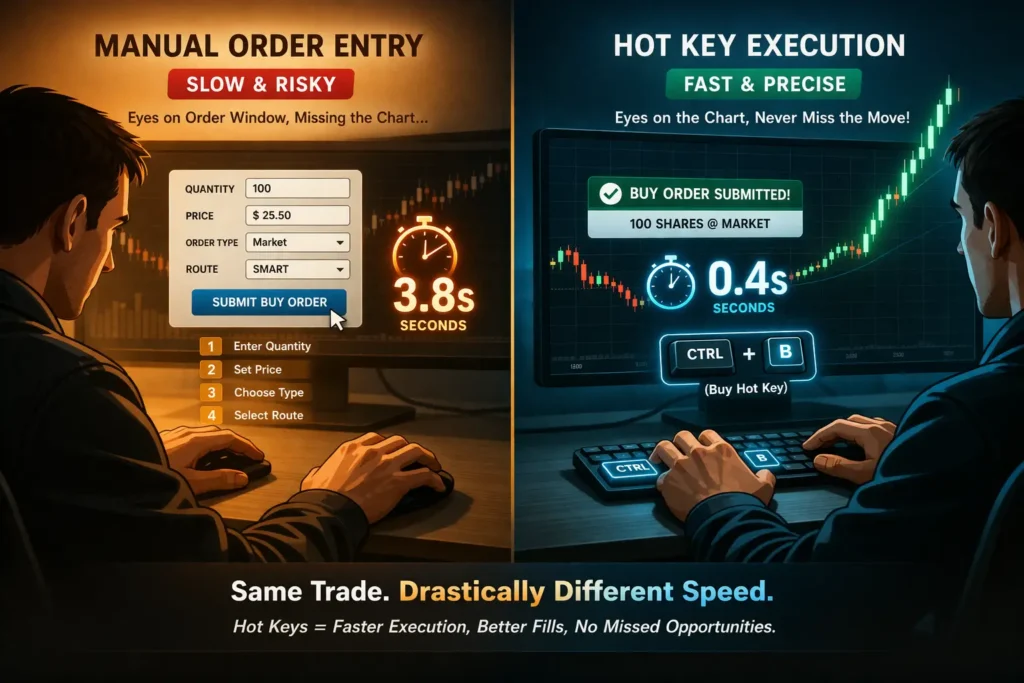
With manual order entry, a typical trade takes 3 to 5 seconds from decision to execution. That includes clicking the order window, typing the quantity, selecting the order type, adjusting the price, and hitting submit. With a properly configured hot key? Under one second. That’s not a marginal improvement — it’s a fundamental shift in your ability to act on what you see.
But here’s what most articles miss: the speed advantage matters most on exits, not entries.
Entries are usually planned. You’ve identified a setup, you know your price level, and you can prepare your order in advance. Exits? Especially emergency exits? Those happen fast and under stress. A stock reverses violently, you need to get out now, and the difference between a 1-second hot key exit and a 5-second manual exit could be the difference between a small controlled loss and a catastrophic one.
Reduced Errors Under Pressure
When markets are moving fast and adrenaline is pumping, your fine motor skills deteriorate. That’s not a character flaw — it’s basic human physiology. Stress narrows your focus, speeds up your heart rate, and makes precise mouse movements harder.
Hot keys bypass that problem. Instead of navigating through menus with shaky hands, you press a pre-configured key combination that does exactly what you need. The action is the same every time, regardless of your emotional state. It’s the trading equivalent of a pilot’s muscle memory during an emergency — trained responses that work even when your brain is screaming.
Focus Preservation
Here’s something that doesn’t get discussed enough: every second you spend looking at your order entry window is a second you’re not looking at the chart. And the chart is where the information lives.
When you’re manually entering an order, your eyes leave the price action. You’re typing quantities, checking prices, selecting routes. Meanwhile, the stock might be showing you critical information — a rejection at resistance, volume drying up, the tape suddenly changing character. Hot keys let you keep your eyes on the chart while executing, which means you’re making decisions based on the most current information available.
Consistency and Discipline
This one’s subtle but powerful. When your exits are pre-programmed into hot keys — sell full position, sell half position, sell quarter position — you’re more likely to actually take them. There’s no negotiation, no “maybe I’ll hold a little longer.” You press the key, the shares sell, and the decision is made.
We’ve seen this pattern over and over: traders who use hot keys for their exits tend to be more disciplined than traders who manually click out of positions. The friction of manual execution creates a tiny window where emotions can override the plan. Hot keys close that window.
The 5 Essential Hot Key Categories Every Beginner Needs
Here’s where most guides lose beginners. They dump 20 or 30 hot key configurations on you and expect you to memorize them all. That’s a recipe for confusion, fat finger errors, and frustration.
Instead, start with five categories. That’s it. Master these before adding anything else.
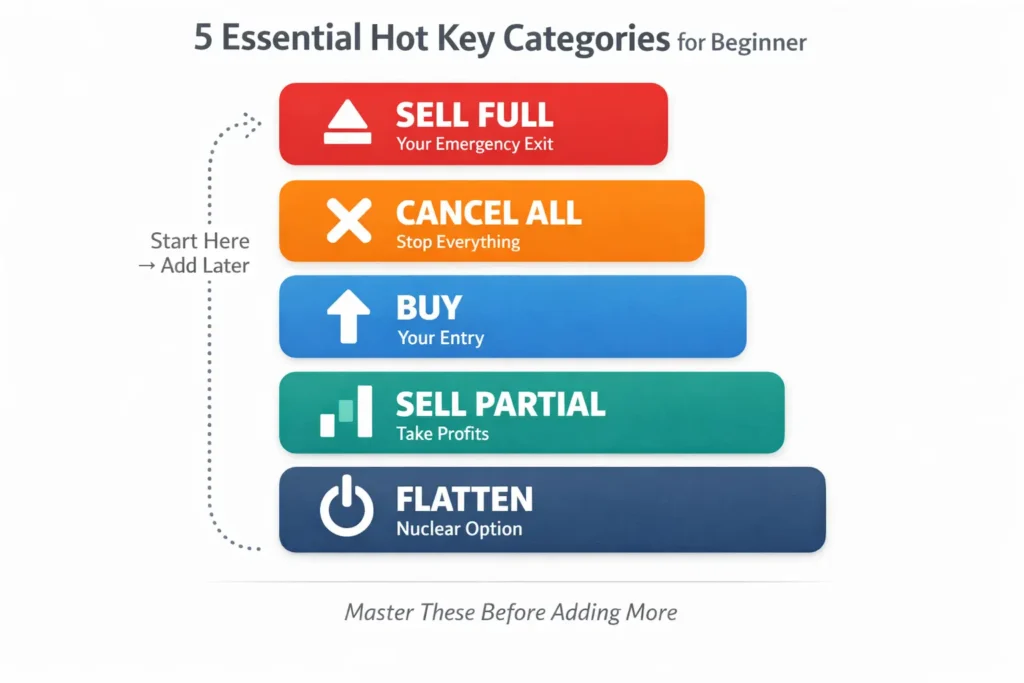
Category 1: Buy (Entry)
This is your “get in” button. At minimum, you need one hot key that sends a buy order for a pre-set number of shares at or near the current ask price.
What to configure:
- Quantity: Your default share size (based on your position sizing rules — which we cover in our Position Sizing guide)
- Order type: Limit order (not market — you want price control)
- Price: Ask price plus a small offset (say, 5 cents) to ensure you get filled on fast-moving stocks
- Route: Your broker’s default smart route, or a direct route like ARCA or NASDAQ if your platform supports it
Example: You press Ctrl+B → Platform sends a limit buy order for 200 shares at the ask price + $0.05, routed via your default route.
Beginner tip: Start with one buy hot key at your standard position size. You can add additional buy keys for different sizes later.
Category 2: Sell Full Position (Emergency Exit)
This is arguably your most important hot key. It sells your entire position immediately. When things go wrong — and they will — this is your ejection seat.
What to configure:
- Action: Sell all shares of the currently selected symbol
- Order type: Limit order at bid price minus a small offset (say, 5-10 cents below the bid) — this ensures you get out even in a fast decline
- Priority: This should be the easiest key to reach on your keyboard
Example: You press Ctrl+Z → Platform sends a limit sell for your full position at bid – $0.10.
Why not a market order for the emergency exit? Market orders on volatile, low-float stocks can fill at prices far worse than you expect — a concept called slippage. Using a limit order with a generous offset below the bid gives you speed and price protection. We dig into slippage mechanics in our Understanding Slippage guide.
Category 3: Sell Partial Position (Profit Taking)
Smart traders don’t sell everything at once. They scale out — taking partial profits as the stock moves in their favor. You’ll want at least two partial sell hot keys:
- Sell half position: Lock in profits on half your shares while letting the rest run
- Sell quarter position: Even more gradual profit taking
Example: Ctrl+X sells half your position on the bid. Ctrl+C sells a quarter.
Scaling out is one of the most important trade management skills you’ll develop. It lets you reduce risk while still participating in further upside. We cover the full mechanics in our Scaling In and Out guide.
Category 4: Cancel All Orders
Markets shift fast. You might have three or four pending limit orders sitting out there when the market suddenly reverses or breaking news drops. You need one button that kills every open order instantly.
What to configure:
- Action: Cancel all open orders for the current symbol (or all symbols, depending on your preference)
Example: Ctrl+Shift+C → All pending orders are canceled immediately.
This hot key is your “stop everything” button. Professional traders consider it non-negotiable. Imagine you have five different buy limit orders queued up across different price levels, and suddenly the S&P futures start collapsing. Without a cancel-all hot key, you’d have to find and cancel each order individually — and by the time you do, some of them may have already filled. One keystroke eliminates that risk entirely.
Category 5: Flatten (Close Everything)
The “flatten” or “close all positions” hot key is the nuclear option. It sells every share you own in the currently focused stock and cancels all related open orders. Some platforms even let you configure a “flatten all” hot key that closes every position across every stock in your account.
When to use it:
- Your internet connection becomes unstable
- Breaking news drops and you don’t understand the implications
- You’ve hit your daily max loss and need to stop trading immediately
- Something feels wrong and you can’t pinpoint why — trust that instinct
Example: Ctrl+Shift+F → All positions closed, all orders canceled.
That’s five categories. Five sets of actions. If you configure nothing else, these five will cover 90% of the execution scenarios you’ll face as a beginner day trader.
How to Set Up Your First Trading Hot Keys
Setting up hot keys varies by platform, but the general process follows the same pattern everywhere. Here’s the step-by-step approach.
Step 1: Find Your Platform’s Hot Key Configuration Menu
On most DMA platforms, you’ll find this under Settings, Configuration, or Preferences. Common locations:
- DAS Trader Pro: Setup → Hot Keys (or right-click the montage window)
- Lightspeed Trader: Utilities → Configuration Settings → Keyboard Tab
- Sterling Trader Pro: Setup → Hotkey Settings
- Schwab (StreetSmart Edge): Right-click in the Trading tab → Hot Keys
If you’re on a retail platform like Thinkorswim, you’ll find some hot key options under Application Settings → Hot Keys, though the customization is more limited compared to DMA platforms.
Step 2: Define the Action First, Then Assign the Key
Don’t start by picking random keys and assigning actions to them. Start with the action you need, then find a logical key for it.
For each of the five essential categories above, define:
- The action (buy, sell full, sell half, cancel all, flatten)
- The order type (limit, market)
- The quantity (fixed number, or percentage of current position)
- The price reference (bid, ask, midpoint) and any offset
- The route (smart route, ARCA, NASDAQ, etc.)
Understanding order types is essential here — if you’re not confident on the difference between market, limit, and stop orders, read our Order Types guide before configuring hot keys. You need to know exactly what each hot key will do before you assign it.
Step 3: Choose Key Combinations Wisely
This matters more than people think. Follow these principles:
Keep buy and sell keys physically separated on the keyboard. You never want your “buy 500 shares” key right next to your “sell everything” key. Some traders put all buy actions on the left side of the keyboard and all sell actions on the right side.
Use modifier keys (Ctrl, Shift, Alt) to prevent accidental triggers. A single keystroke like F2 is easy to hit by accident. Ctrl+Shift+B requires deliberate intent. For any action that sends an order, always use at least one modifier key.
Make your most critical hot keys the easiest to reach. Your emergency exit (sell full position) and cancel-all should be mapped to key combinations your fingers can find without looking. Under stress, you won’t have time to think about which keys to press.
Avoid keys that conflict with your platform’s built-in shortcuts. Pressing Alt+F4 might close your entire trading platform instead of flattening your position. Check your platform’s default key mappings before assigning custom hot keys.
Step 4: Document Everything
Write down every hot key you’ve configured. Seriously. Keep a physical reference card next to your keyboard until the key combinations become muscle memory. This isn’t just for convenience — it’s a safety practice. If you ever forget which key does what mid-trade, you need to be able to glance at your reference card instead of guessing.
A simple table works:
| Key Combo | Action | Details |
|---|---|---|
| Ctrl+B | Buy | 200 shares, limit, ask +$0.05 |
| Ctrl+Z | Sell Full | All shares, limit, bid -$0.10 |
| Ctrl+X | Sell Half | 50% position, limit, bid -$0.05 |
| Ctrl+Shift+C | Cancel All | All open orders |
| Ctrl+Shift+F | Flatten | Close all + cancel all |
Step 5: Test in Paper Trading First — No Exceptions
This is not optional. Before you use a single hot key with real money, test every single one in a simulated environment. We cannot stress this enough. We cover how to set up and use a paper trading account in our Paper Trading guide, and you should have hot key practice as a specific part of your simulation routine.
Verify that:
- Each hot key executes the correct action
- The share quantity is right
- The order type is what you intended
- The price offset makes sense
- No hot key conflicts with another one
Test under pressure, too. Have a stock running on your simulator and practice hitting your buy key, then immediately hitting your sell key. Time yourself. Get comfortable with the physical motion. This is where muscle memory begins.
The Dark Side: Hot Key Mistakes That Cost Real Money
Hot keys are powerful. Power without respect is dangerous. Here are the mistakes that hurt traders — from retail beginners all the way up to institutional professionals.
Fat Finger Errors
A “fat finger error” happens when you press the wrong key, type the wrong quantity, or accidentally trigger a hot key you didn’t intend to. In institutional trading, these errors have caused catastrophic losses. A trader at Mizuho Securities in Japan once accidentally entered a sell order for 610,000 shares at 1 yen each instead of 1 share at 610,000 yen — a mistake that cost the firm approximately $225 million.
Now, as a retail trader, you’re not going to move markets with a fat finger. But you can accidentally buy a stock you didn’t mean to, double your intended position size, or sell shares you wanted to keep. On a volatile stock, even a small misclick can cost you hundreds of dollars before you realize what happened.
How to prevent fat finger errors:
- Always use modifier keys (Ctrl, Shift, Alt) — never map critical actions to single keystrokes
- Keep your hands in a consistent “home position” on the keyboard
- Some platforms offer order confirmation dialogs for orders above a certain size — consider enabling this for anything larger than your standard position
- Never configure a hot key while you have live positions open

Overtrading
Here’s a trap that’s surprisingly common: once execution becomes effortless, some traders start trading more. A lot more. The friction of manual order entry used to slow them down just enough to think twice. Remove that friction, and suddenly they’re taking 30 trades a day instead of 5.
More trades doesn’t mean more profit. In fact, for most beginners, it means more commissions, more slippage, and more emotional decision-making. Hot keys should make your planned trades faster — not encourage you to take unplanned trades.
If you notice your trade count spiking after adding hot keys, that’s a red flag. Step back and review whether those extra trades were in your trading plan or whether the ease of execution tempted you into impulse trades.
Misconfigured Keys
This one’s a silent killer. You set up a hot key weeks ago, forget the exact parameters, and then one day it fires an order that’s completely different from what you expected. Maybe you configured it to buy 500 shares but thought it was 200. Maybe it’s sending market orders when you thought it was sending limits.
The fix is simple: review your hot key configurations regularly — at least monthly. And always keep that reference card up to date.
Trading the Wrong Stock
On most DMA platforms, hot keys apply to whatever stock is currently “focused” or “selected” in your order entry window. If you click on a different stock in your watchlist, your hot keys now apply to that stock. More than one trader has accidentally bought 1,000 shares of the wrong ticker because they didn’t realize their focus had shifted.
Prevention: Before pressing any execution hot key, always verify which symbol is active in your order window. Make it a habit — glance at the ticker, then press the key. Every time. No exceptions.
How to Practice Hot Keys Safely Before Using Real Money
Practice doesn’t make perfect — practice makes permanent. So you need to practice correctly from the start.
Phase 1: Static Practice (No Live Market)
Before you even open a chart, just practice the physical key combinations. With your platform open (and no positions or orders active), press each hot key combination 20-30 times. Get your fingers used to the physical motion. You’re building neural pathways here, the same way a musician practices scales before playing songs.
Verify the action each time. Did the right order appear? Is the quantity correct? Is it a buy or a sell? Catch any misconfiguration now, when there’s zero money at risk.
Phase 2: Paper Trading With Purpose
Now open your paper trading account — which we walk through in our Paper Trading guide — and start using your hot keys in a simulated market. But don’t just randomly buy and sell. Practice specific scenarios:
- The clean entry: You see a setup, you press buy. Did it execute at the price you expected?
- The emergency exit: You’re in a position and the stock reverses. Press your sell-all hot key. How fast did you react? Was the fill reasonable?
- The partial exit: You’re in a winning trade. Take half off with your sell-half key. Did it work correctly?
- The panic cancel: You have multiple pending orders and need to cancel everything. Press cancel-all. Were all orders removed?
Track your execution times. Most paper trading platforms show order timestamps. Compare the time you decided to act versus the time the order was submitted. Your goal is to shrink that gap until it’s under one second.
Phase 3: Small Size Live Trading
When you transition to real money — and only when you’re consistently comfortable with your hot keys in simulation — start with the smallest position sizes your broker allows. This isn’t about building confidence in your strategy. It’s about verifying that your hot keys work correctly in a live market environment, where real fills, real slippage, and real routing matter.
Paper trading simulators aren’t perfect replicas of live markets. Order fills in simulation can be more generous than what you’ll experience with real money. So use this phase to compare your simulated execution experience with actual results.
Building Muscle Memory: The Progressive Hot Key Approach
Most traders try to learn too many hot keys at once. Don’t. Follow a progressive approach instead.
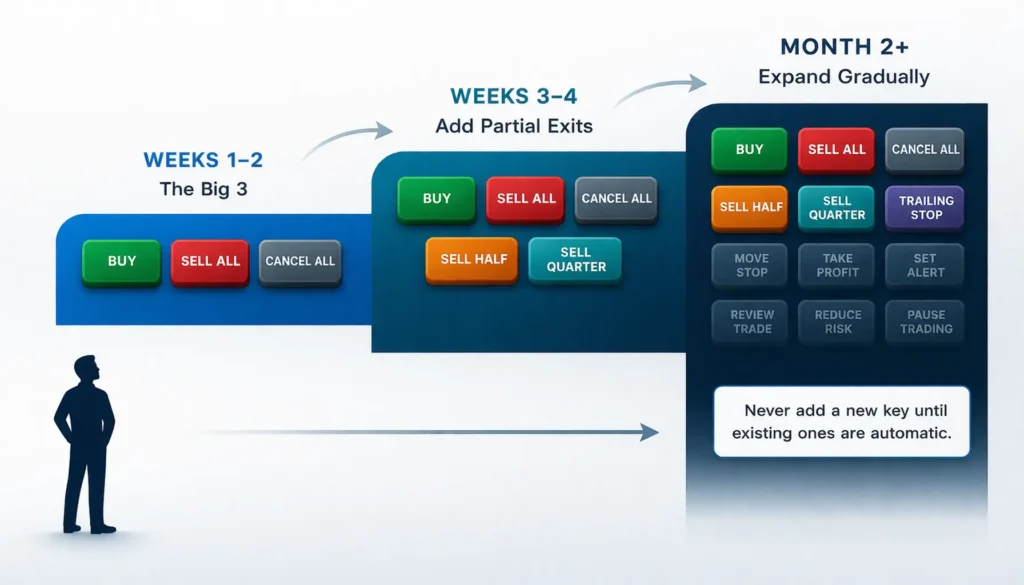
Week 1-2: The Big Three
Start with only three hot keys:
- Buy (your standard entry)
- Sell Full (your emergency exit)
- Cancel All (your stop-everything button)
That’s it. Use nothing else. Trade in paper for at least a week until these three feel automatic — until you can press them without thinking about which key to press.
Week 3-4: Add Partial Exits
Once the big three are in your muscle memory, add: 4. Sell Half (partial profit taking) 5. Sell Quarter (gradual scaling out)
Now you have all five essential categories. Continue paper trading until you can execute a full trade sequence — entry, partial exit, full exit — without hesitation.
Month 2+: Expand Gradually
Only after the essential five are automatic should you consider adding:
- Different share sizes (maybe a second buy key for half your normal size)
- Short sell hot keys (if and when you start shorting)
- Bracket orders (buy + automatic stop loss + profit target)
- Route-specific keys (ARCA, NASDAQ direct routing)
- Chart hot keys (switching timeframes, adding indicators)
The key principle: never add a new hot key until your existing ones are automatic. If you have to think about which key to press, you’re not ready for another one.
The Professional Standard
Most active day traders who’ve been trading for years use somewhere between 8 and 15 hot keys regularly. Not 30. Not 50. Somewhere between 8 and 15. A focused, well-practiced set of hot keys beats a sprawling collection you can’t remember.
Think of it like a chef’s knife set. A professional chef doesn’t use every knife in the kitchen for every dish. They have their go-to tools — a chef’s knife, a paring knife, a bread knife — and they know those tools so well they could use them blindfolded. That’s your goal with hot keys.
When Are You Ready for Hot Keys?
Not every trader needs hot keys from day one. And not every platform supports them. Here’s a readiness checklist:
You’re ready for hot keys when:
- You understand order types — market, limit, stop — and know which one to use when. (If not, start with our Order Types guide.)
- You have a trading platform that supports hot key customization — most DMA platforms do, most retail mobile apps don’t
- You’re comfortable with your screen layout and know where your order entry windows are. (See our Screen Layout guide if you haven’t set this up yet.)
- You’ve practiced paper trading long enough that the mechanics of placing a trade are familiar, even if you’re still slow at it
- You have a trading plan — even a basic one — so that hot keys speed up your planned actions rather than enabling impulsive ones
You’re NOT ready for hot keys when:
- You’re still learning what order types are
- You haven’t paper traded at all yet
- You don’t have a trading plan or defined entry/exit rules
- You’re using a mobile-only trading app that doesn’t support customization
- You tend to overtrade or take impulsive trades — adding speed to impulse only magnifies losses
Hot keys are an execution tool. They make good habits faster and bad habits more expensive. Make sure you’re building good habits first.
Platform Considerations
If you’re serious about day trading, you’ll eventually want a platform with robust hot key support. Professional-grade platforms like DAS Trader Pro (available through brokers like Interactive Brokers and Lightspeed), Sterling Trader Pro, or Lightspeed’s native platform offer the deepest hot key customization.
On the scanning side, Trade Ideas offers built-in execution through their Brokerage Plus feature, which connects to Interactive Brokers and other brokers for direct order execution — including hot key workflows integrated with real-time scanner alerts. If you’re looking for a platform that combines stock scanning with execution speed, it’s worth considering.
For a comprehensive look at platforms, scanners, and all the tools you’ll need as you build your trading setup, check out our Day Trading Toolkit where we break down the best options by category.
What’s Next in Your Day Trading Journey
You now understand what hot keys are, which five categories to start with, how to set them up safely, and how to build muscle memory progressively. This is one of those skills that pays dividends — literally — for as long as you trade.
The next question every beginner faces is practical: how much should you actually spend on trading tools? Which ones are worth paying for, and which free alternatives are good enough when you’re just starting out? That’s exactly what we cover next.
→ Next Article: Free vs. Paid Trading Tools: What You Actually Need as a Beginner
Frequently Asked Questions
What are trading hot keys?
Quick Answer: Trading hot keys are pre-programmed keyboard commands that let you execute trading actions — like buying shares, selling positions, or canceling orders — instantly with a single keystroke or key combination.
Unlike keyboard shortcuts that help you navigate your platform (zooming charts, switching windows), hot keys directly interact with your trading account. When you press a configured hot key, it sends an order with your pre-defined parameters: share quantity, order type, price, and routing destination. This turns what would normally be a 3-5 second manual process into a sub-second execution. Most DMA (direct market access) platforms like DAS Trader Pro, Lightspeed, and Sterling Trader Pro offer extensive hot key customization.
Key Takeaway: Hot keys are execution tools that speed up your trading actions — treat them seriously because they directly affect your money.
Do I need hot keys as a beginner day trader?
Quick Answer: Not on day one, but yes, you’ll want them before you start trading with real money — especially for exits and emergency situations.
Beginners should focus first on understanding order types, building a screen layout, and practicing in a paper trading account. Once those fundamentals are solid, hot keys become the natural next step. The priority for beginners isn’t speed on entries — you can prepare those in advance. The real value is in exits: selling quickly when a trade goes wrong, taking partial profits, and canceling pending orders when market conditions change. Even starting with just three hot keys (buy, sell all, cancel all) gives you a meaningful execution advantage. For a complete look at what tools and skills beginners should prioritize, see our Day Trading Toolkit.
Key Takeaway: Learn fundamentals first, then add hot keys as an execution layer — start with just 3-5 essential keys.
What are the most important hot keys for day trading?
Quick Answer: The five essential hot key categories are: buy (entry), sell full position (emergency exit), sell partial position (profit taking), cancel all orders, and flatten (close everything).
Your sell-full-position hot key is arguably the most critical one to have. When a stock reverses against you, every second matters. Having one key that sells your entire position gives you the fastest possible exit. Cancel-all is equally vital for situations where you have multiple pending orders and the market environment changes suddenly. Partial sell keys (half position, quarter position) allow you to scale out of winning trades. Start with these five, master them completely, and only then consider adding additional hot keys for different share sizes, short selling, or route-specific orders.
Key Takeaway: Master the five essentials before adding complexity — your sell-all and cancel-all keys should be the first ones you configure.
How do I set up hot keys on my trading platform?
Quick Answer: Most DMA trading platforms have a hot key configuration menu under Settings or Configuration where you define the action, order parameters, and keyboard combination for each hot key.
The general process is: (1) Open your platform’s hot key or keyboard settings, (2) create a new hot key entry, (3) define the trading action (buy, sell, cancel), (4) set the parameters (quantity, order type, price offset, route), and (5) assign a keyboard combination. The specifics vary by platform — DAS Trader uses Setup → Hot Keys, Lightspeed uses Utilities → Configuration → Keyboard Tab, and Schwab’s StreetSmart Edge has hot keys accessible by right-clicking in the trading tab. Always test every hot key in paper trading before using it live. If your current platform doesn’t support hot key customization, that’s a signal you may need a more capable platform for active day trading.
Key Takeaway: Define the action first, assign the key second, and always test in paper trading before using real money.
Can hot keys cause you to lose money?
Quick Answer: Yes — fat finger errors, misconfigured keys, and accidental triggers can all lead to real financial losses if you’re not careful.
Fat finger errors are the most common hot key danger. Pressing the wrong key, having the wrong symbol focused in your order window, or triggering a hot key with the wrong share quantity configured — all of these can result in unintended trades. At the institutional level, fat finger errors have caused losses in the hundreds of millions of dollars. For retail traders, the stakes are smaller but the principle is the same. Hot keys can also encourage overtrading: once execution becomes effortless, some traders start taking trades they haven’t planned, racking up commissions and slippage. Prevention comes down to three habits: always use modifier keys (Ctrl, Shift) to prevent accidental triggers, verify the active symbol before pressing any execution key, and review your hot key configurations regularly.
Key Takeaway: Hot keys are powerful but require respect — always use safeguards, verify your active symbol, and test thoroughly before live trading.
What’s the difference between hot keys and hot buttons?
Quick Answer: Hot keys are keyboard-based commands, while hot buttons are clickable on-screen buttons that perform the same pre-configured trading actions — they’re two ways to trigger the same thing.
Many DMA platforms offer both options. Hot buttons appear as clickable buttons in your order entry or Level 2 window, while hot keys are mapped to keyboard combinations. Some traders use a mix of both — hot keys for their most frequent actions (entries and exits) and hot buttons for less common actions they don’t want to memorize key combinations for. Hot buttons can also be useful on supplementary devices like programmable keypads, where each physical button maps to a specific trading action. The choice between hot keys and hot buttons is largely a matter of personal preference and workflow.
Key Takeaway: Both achieve the same result — choose based on your personal workflow, though keyboard hot keys are typically faster for active traders.
Should I use market orders or limit orders for my hot keys?
Quick Answer: Limit orders — almost always. Market orders on volatile stocks can fill at prices far worse than expected, turning a quick execution into an expensive surprise.
When configuring buy hot keys, set them to send a limit order at the ask price plus a small offset (5-10 cents). This gives you the speed of near-instant execution with the protection of a price ceiling. For sell hot keys, use a limit order at the bid price minus an offset. The offset ensures you get filled even in a fast-moving market, but the limit order prevents you from getting an extremely unfavorable fill. The only time market orders make sense is when you absolutely need guaranteed execution regardless of price — and for beginners, that scenario is rare. We explain order types in detail — including why market orders can be dangerous on low-float volatile stocks — in our Order Types guide.
Key Takeaway: Limit orders with small offsets give you near-market-order speed with much better price protection.
How many hot keys should I have?
Quick Answer: Start with 3-5, and most experienced day traders use between 8 and 15 regularly — more than that and you risk confusion and errors.
The biggest beginner mistake is configuring too many hot keys at once. You end up with a wall of key combinations you can’t remember, which leads to hesitation, wrong keys, and errors. Start with the big three (buy, sell all, cancel all), add partial exits once those are automatic, and then gradually expand based on your actual trading needs over months of practice. Think quality, not quantity. A trader with five hot keys they’ve used a thousand times each will always outperform a trader with twenty hot keys they barely remember.
Key Takeaway: Less is more — 5 well-practiced hot keys beat 20 half-remembered ones every time.
Do hot keys work on all trading platforms?
Quick Answer: No. Full hot key customization is primarily available on DMA (direct market access) platforms designed for active traders, not on most retail mobile apps.
Platforms like DAS Trader Pro, Lightspeed Trader, Sterling Trader Pro, and Schwab’s StreetSmart Edge offer robust hot key support with deep customization. Thinkorswim offers some hot key functionality but with less granular control. Retail apps like Robinhood, Webull, and most mobile-only platforms have minimal or zero hot key support. If hot key execution is important to your trading — and if you’re planning to day trade actively, it should be — this is a key factor in choosing your trading platform. We compare the best options in our Day Trading Toolkit.
Key Takeaway: If you’re serious about day trading, choose a platform with full hot key customization — most retail mobile apps won’t cut it.
How long does it take to build hot key muscle memory?
Quick Answer: Most traders need 2-4 weeks of consistent daily practice to make their core hot keys feel automatic, though full proficiency takes 2-3 months.
Muscle memory follows the same principles as any physical skill: repetition, consistency, and gradual progression. Start by pressing your key combinations 20-30 times in a row during static practice (no live market). Then move to paper trading, where you use them in realistic market conditions daily for at least 1-2 weeks. By weeks 3-4, your core hot keys should feel natural enough that you don’t have to look at the keyboard. Full confidence — including handling unusual situations and split-second exits — typically develops over 2-3 months of active use. The mistake to avoid: rushing through practice and going live before the keys are truly automatic.
Key Takeaway: Treat hot key practice like learning a musical instrument — daily repetition builds the automatic responses you need when seconds count.
Disclaimer
The information provided in this article is for educational purposes only and should not be considered financial advice. Day trading involves substantial risk and is not suitable for every investor. Past performance is not indicative of future results.
For our complete disclaimer, please visit: https://daytradingtoolkit.com/disclaimer/
Article Sources
Our team referenced the following authoritative sources to build this guide on trading hot keys and order execution. These resources provide additional depth on execution mechanics, best execution standards, and platform-specific hot key configurations for traders looking to go deeper.
- Investopedia: Order Execution — Comprehensive definition and explanation of how trade orders are executed in financial markets
- FINRA: Best Execution and Order Handling — FINRA’s guidance on Rule 5310, which governs best execution standards for broker-dealers handling customer orders
- SEC: Investor Education — Trade Execution — The SEC’s educational resource explaining how trades get executed and what investors should know about order types
- CenterPoint Securities: Hot Keys — The Ultimate Guide for Day Traders — Detailed educational guide from a DMA broker covering hot key mechanics, configuration, and best practices
- CME Group: Order Types Education — CME Group’s educational module on various order types and their execution characteristics
- Wikipedia: Fat-finger error — Documented history of institutional fat finger errors in financial markets, including cost figures and market impact


