How to Set Up Your Trading Screen Layout (Single & Multi-Monitor Guides)

Beginner's Guide 101: Lesson 18 of 101
View all lessonsIn this article12 sections
You could have six monitors, a $5,000 computer, and a fiber-optic internet connection — and still miss trades because your chart is buried under your scanner window and you can't find the order entry button.
Screen layout isn't about how many monitors you own. It's about where you put the right information so your brain can process it without thinking. The fastest trader in the world is slow if they have to hunt for their chart, search for their order panel, or squint at a watchlist crammed into a corner.
This guide presents trading layouts over years of live trading, and the single biggest lesson is this: organization beats equipment, every time. A well-organized single monitor outperforms a cluttered six-monitor disaster. A beginner with a clean dual-screen setup will execute faster than an intermediate trader drowning in windows they don't actually use.
This article isn't a hardware buying guide — we covered computer and monitor specs in our Essential Day Trading Setup guide. This is about what goes WHERE on your screen, WHY it goes there, and how to build a layout that makes you faster, calmer, and more decisive when every second matters.
Why Your Screen Layout Matters More Than Your Screen Count
There's a persistent myth in trading culture that more monitors equal more success. You've probably seen the Instagram photos — six screens glowing, data everywhere, a trader looking intensely at... something.
Here's the truth that most of those posts won't tell you: the number of screens doesn't determine your profitability. What determines it is whether the right information is in the right place at the right time.
Think about an airline pilot's cockpit. Pilots don't have dozens of random instruments scattered at random. Every gauge, every switch, every display is positioned based on how urgently and frequently they need it. The flight controls and primary instruments are directly in front of them. Secondary instruments are slightly off-center. Emergency indicators have dedicated locations with warning lights. Everything has a purpose and a place.
Your trading screen is your cockpit. The goal isn't to display the maximum amount of data — it's to display the minimum necessary data in a layout that lets you make fast, accurate decisions without moving your eyes more than you need to.
A bad layout creates hesitation. You see a setup forming on your chart, but your order entry is on a different screen, your position size calculator is minimized, and by the time you pull everything up, the entry is gone. A good layout eliminates that friction entirely. You see the setup, glance at your order panel (which is already right there), and execute. Two seconds versus ten seconds. That difference compounds across hundreds of trades.
The Cockpit Principle: How Professional Traders Organize Information
Professional traders — whether at prop firms, hedge funds, or their home offices — organize their screens using a consistent hierarchy we call the cockpit principle. It's built on one simple idea: the more urgently you need information, the closer it should be to your direct line of sight.
Tier 1 — The Execution Center (dead center, primary focus). This is the information you need during the actual moment of entering, managing, or exiting a trade. Your primary chart (the timeframe you make execution decisions on), your order entry window, and your Level 2 / Time & Sales data. This is your instrument panel. It never moves. It's always visible. When you look straight ahead, this is what you see.
Tier 2 — Supporting Context (immediately surrounding the center). This is information that informs your trading decisions but doesn't require split-second access. Your secondary chart (a higher timeframe for context), your watchlist or scanner showing potential setups, and your position/P&L display. You glance at Tier 2 information periodically — maybe every 30 seconds to a few minutes — but you don't stare at it while executing.
Tier 3 — Peripheral Awareness (edges or separate screens). This is background information that rarely drives immediate action but keeps you aware of the bigger picture. News feeds, economic calendars, broader market indices (SPY, QQQ), social media sentiment, and chat rooms. You check Tier 3 information occasionally — maybe a few times per hour — and you don't need it front and center.
The key insight is that most beginners get this hierarchy backwards. They put news and social media front and center (because it's interesting) and push their execution tools to the side (because they're less visually exciting). Then they wonder why they're always late on entries.
Build your layout from the center outward: execution first, context second, awareness last.
The 5 Essential Information Zones Every Day Trader Needs
Regardless of whether you're trading on one screen or six, your layout needs to accommodate five core information zones. Think of these as the building blocks — the specific windows and data feeds that every day trading layout is built from.
Zone 1: Primary Chart. This is the chart of the stock you're actively trading, displayed on the timeframe you use for execution decisions — typically a 1-minute or 5-minute chart for most day traders. It should be your largest window and the anchor of your entire layout. Your key indicators (usually just two or three — more creates clutter) live on this chart. You'll learn about choosing the right timeframe in our Chart Timeframes guide.
Zone 2: Order Entry / Level 2 / Time & Sales. This is where you execute trades. Depending on your platform, this might be a single integrated window (like a trade montage) or separate panels for order entry, Level 2 depth, and the Time & Sales tape. This zone sits immediately adjacent to your primary chart — close enough that your eyes can flick between chart and order panel without moving your head. We cover Level 2 and Time & Sales reading in depth in our Level 2 Quotes guide.
Zone 3: Scanner / Watchlist. This zone shows you what stocks are in play right now — whether that's a real-time scanner surfacing stocks meeting your criteria, a pre-built morning watchlist, or alert windows notifying you of setups. A quality stock scanner is one of the most powerful tools in your layout. Trade Ideas offers AI-powered real-time scanning with pre-built day trading layouts that include scanner windows, charts, and alert systems in a single workspace — specifically designed for the kind of layouts we're building here. For a full breakdown of all the scanner options, see our Day Trading Toolkit.
Zone 4: Secondary Chart. This is a higher timeframe chart — if your primary chart is a 5-minute, your secondary might be a daily or 15-minute chart — that provides context for your execution decisions. Is the stock trending on the daily? Is there a major resistance level just above your entry? The secondary chart answers these questions. It doesn't need to be as large as your primary chart, but it should be visible without switching windows.
Zone 5: News / Market Overview. This zone covers the peripheral awareness layer: a news feed (for breaking headlines that could affect your positions), broader market index charts (SPY, QQQ, or sector ETFs), and possibly an economic calendar on days with scheduled reports. This is Tier 3 information — important to have available, but the least urgent of the five zones.
Not every zone needs its own dedicated window or monitor. On a single screen, some zones share space or live on different virtual desktops. On a multi-monitor setup, each zone gets more breathing room. The zones stay the same — what changes is how much real estate each one gets.
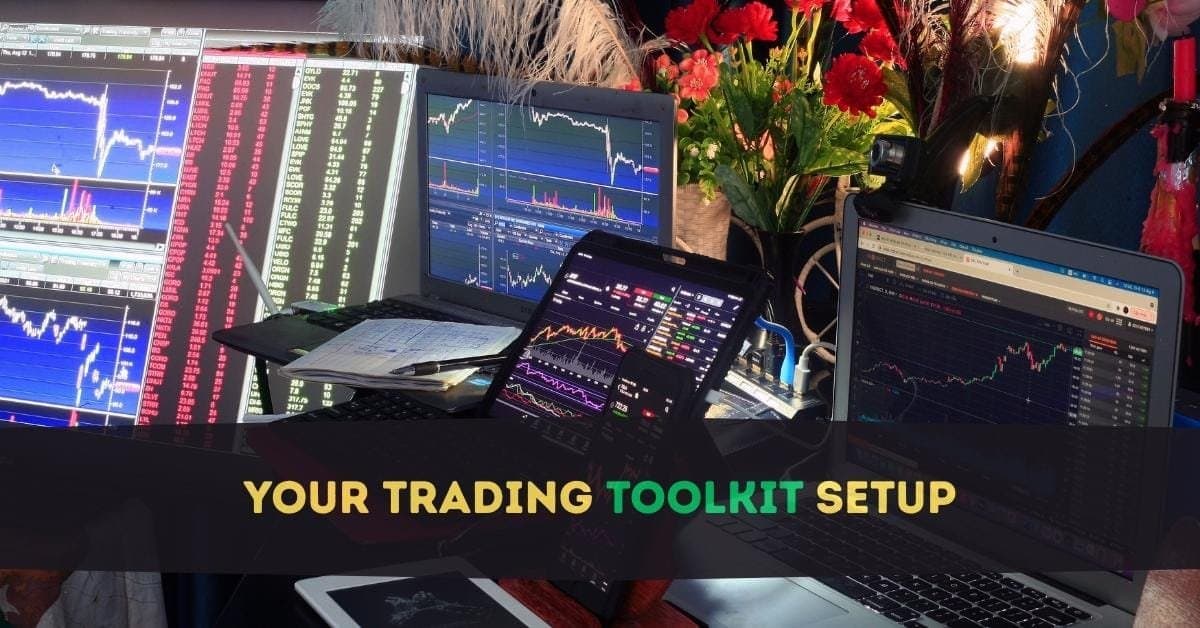
Single-Monitor Layout: How to Day Trade on One Screen
This is where most beginners start, and there's absolutely nothing wrong with that. You can day trade effectively on a single monitor — you just need to be smarter about how you organize the space.
The minimum recommendation is a 24-inch monitor at 1920x1080 resolution. If you can swing a 27-inch at 2560x1440, even better — the extra pixels let you fit more windows without everything looking cramped. Anything below 24 inches makes day trading painful.
The single-monitor template:
Divide your screen into a grid. The left two-thirds of the screen is your primary chart (Zone 1) — make it as large as possible. This is the most important thing on your screen and deserves the most real estate.
The right one-third is a vertical column split into three stacked panels: order entry / Level 2 at the top (Zone 2), your watchlist or scanner in the middle (Zone 3), and Time & Sales at the bottom.
That's it. Four windows. No secondary chart visible (you'll use virtual desktops or tab switching for that — more on this shortly). No news feed. No market overview. Just the core execution tools and your primary chart.
"But what about the daily chart? What about news? What about SPY?"
You access those by switching — either through virtual desktops (covered below) or through tabbed windows in your platform. Most trading platforms let you create multiple "workspaces" or "layouts" that you switch between with a single click or keyboard shortcut.
The critical principle for single-monitor trading is ruthless prioritization. When you only have one screen, every pixel matters. If a window isn't directly helping you execute your current trade, it doesn't earn a permanent spot on your screen. The daily chart is important, but you check it once before the trade — it doesn't need to be visible during execution. News is important, but you can check it between trades, not during them.
DayTradingToolkit knows traders who are consistently profitable on a single laptop screen. They use platform hotkeys — covered in our Hot Keys guide — to switch between layout views instantly. One hotkey loads their pre-market research layout. Another loads their live execution layout. A third loads their post-trade review layout. Same screen, three completely different configurations, seamless switching.
Dual-Monitor Layout: The Sweet Spot for Most Beginners
Two monitors is the setup DayTradingToolkit recommends for most beginner day traders. It provides enough real estate to keep all five information zones visible simultaneously — without the cost, desk space, or complexity of three or more screens.
The dual-monitor template:
Monitor 1 (Primary — directly in front of you): This is your execution screen. The left side holds your primary chart (Zone 1) taking up roughly 60-70% of the monitor. The right side is a vertical stack: order entry / Level 2 on top (Zone 2) and Time & Sales below. Everything you need to see during a trade lives on this monitor. Your eyes stay here when you're in a position.
Monitor 2 (Secondary — angled slightly to one side): This is your research and awareness screen. The top half holds your secondary chart (Zone 4) — the daily or 15-minute timeframe that provides context. The bottom half splits between your scanner / watchlist (Zone 3) on one side and news feed / market overview (Zone 5) on the other.
The workflow is intuitive. You scan Monitor 2 for opportunities (watchlist, scanner alerts). When something catches your attention, you load it on Monitor 1's primary chart for closer analysis. If the setup looks good, you execute — with your order panel right there on Monitor 1. After the trade, you glance back at Monitor 2 for the next opportunity.
Positioning matters. Your primary monitor sits directly in front of you at eye level. The secondary monitor angles inward at roughly 15 to 30 degrees, close enough to read without turning your head — just shifting your eyes. If you're right-handed, most traders prefer the secondary monitor on the left (so your dominant hand stays on the mouse near the primary screen). But honestly, it's personal preference. Try both sides and see what feels natural.
This layout gives you one screen for doing and one screen for watching. That separation alone will make your trading feel calmer and more organized than cramming everything onto a single display.
Triple-Monitor and Beyond: When More Screens Actually Help
Three monitors is where most professional day traders land. It's the point of diminishing returns — you have enough space for every information zone to breathe, without the visual overload that comes with four, five, or six screens.
The triple-monitor template:
Monitor 1 (Left — angled inward): Your scanner / watchlist (Zone 3) and secondary charts (Zone 4). This is your "hunting" screen — where you find the next trade. Scanner alerts populate here, and you keep two or three watchlist charts open showing stocks on your radar.
Monitor 2 (Center — directly in front): Your primary chart (Zone 1) and execution tools (Zone 2). This monitor never changes. It always shows the chart of the stock you're actively trading, your order entry, Level 2, and Time & Sales. This is your command center.
Monitor 3 (Right — angled inward): Your news feed (Zone 5), market overview charts (SPY, QQQ, your sector ETF), and position / P&L tracker. This is your awareness screen — the one you glance at for context but rarely interact with directly during a trade.
The flow moves left to right: find the trade (Monitor 1), execute the trade (Monitor 2), monitor the environment (Monitor 3). Some traders reverse this based on preference, but the principle stays the same — hunting on one side, executing in the center, awareness on the other.
When to go beyond three monitors. Four monitors makes sense if you trade multiple strategies simultaneously (for example, a momentum scanner on one screen and a gap-and-go scanner on another) or if you actively trade multiple asset classes (stocks on one setup, futures on another). Six monitors is almost exclusively the territory of professional prop traders managing complex multi-legged positions.
For beginners? Three monitors is the ceiling. If you feel like you need more than three screens, the issue is almost always that you're displaying information you don't actually use — not that you need more space.
Virtual Desktops: The Free Multi-Monitor Hack
Here's a trick that most trading guides completely overlook: both Windows and macOS have built-in virtual desktop functionality that effectively multiplies your screen count — for free.
On Windows: Press Windows + Tab, then click "New Desktop" at the top. You can create multiple virtual desktops, each with its own set of open windows. Switch between them with Ctrl + Windows + Left/Right Arrow. Set up one desktop for your pre-market research layout, another for your live trading layout, and a third for post-market review.
On macOS: Swipe up with three fingers on the trackpad (or press Control + Up Arrow), then click the "+" button to add a new Space. Switch between Spaces with Control + Left/Right Arrow or a three-finger swipe.
For single-monitor traders, virtual desktops are transformative. Instead of cramming every window onto one screen, you create dedicated layouts for different phases of your trading day. Your research desktop has your scanner, daily charts, news feeds, and economic calendar spread out comfortably. Your execution desktop has only your primary chart, order entry, and Level 2. One keystroke switches between them instantly.
Even multi-monitor traders benefit. A common approach: use your physical monitors for the live trading layout, and keep a virtual desktop loaded with a post-trade journaling workspace — your broker's trade log, a note-taking app, and your trading journal — that you switch to after the close.
The key is creating these layouts in advance, saving them in your trading platform, and practicing the keyboard shortcuts until switching is muscle memory. Your platform's "workspace" or "layout" saving feature makes this even more powerful — you save a named layout, assign it a hotkey, and reload it instantly every morning.
Save Your Layouts: Pre-Market vs. Live Trading Workspaces
Most trading platforms — including TradingView, thinkorswim, DAS Trader, and Trade Ideas — support saving multiple layout configurations. This is one of the most underused features available to beginners, and it solves the "I can never find the right window" problem permanently.
Pre-Market Research Layout. This configuration is optimized for the 30 to 60 minutes before market open. Larger scanner windows showing pre-market gappers. Daily charts of your watchlist stocks, each with key levels marked. An economic calendar for the day's scheduled reports. A news feed taking up more space than it would during live trading. This layout is about discovery — casting a wide net before the bell.
Live Trading Layout. This is your execution cockpit — the layout we've been building throughout this article. Primary chart front and center. Order entry right beside it. Scanner compressed to show just alerts. News minimized or tucked into a small corner. Everything optimized for speed and focus. The moment the market opens, you switch to this layout and it stays until you're done trading.
Post-Market Review Layout. After the close, you switch to a workspace designed for reflection. Your broker's trade log or blotter. Your trading journal application. Daily charts of the stocks you traded, with your entries and exits marked for review. This layout doesn't need to load fast — it needs to facilitate honest, thorough analysis.
Save each layout with a descriptive name. Assign hotkeys if your platform supports it. Practice switching between them until the transition is seamless. This simple habit — treating your screen layout as a system with distinct modes, not a single static arrangement — will make your trading sessions dramatically smoother.
Ergonomics: Protecting Your Body During Long Trading Sessions
This section might not seem like it belongs in an article about screen layouts, but ergonomics research makes clear that poor ergonomics will end your trading career faster than a bad strategy.
Day traders sit for 6 to 8 hours in front of screens. Neck pain, eye strain, back problems, and repetitive strain injuries are real occupational hazards. Your screen layout directly contributes to these issues if it forces you to crane your neck, squint at tiny text, or hunch forward to read a distant monitor.
Monitor positioning fundamentals. Your primary monitor should sit directly in front of you with the top edge at or slightly below eye level. This keeps your neck in a neutral position. If you're using multiple monitors, angle the secondary screens inward — not flat across your desk — so you can see them by shifting your eyes, not turning your head. A monitor arm (rather than a fixed stand) makes height and angle adjustments much easier.
The 20-20-20 rule for eye strain. The American Academy of Ophthalmology recommends this practice: every 20 minutes, look at something 20 feet away for at least 20 seconds. It sounds trivial, but it dramatically reduces digital eye strain. Some traders set a subtle recurring alarm to remind themselves.
Lighting matters. Avoid positioning your monitors in front of a bright window (the glare makes charts unreadable) or in a completely dark room (the contrast between bright screens and a dark environment strains your eyes). Ambient lighting slightly dimmer than your screen brightness is the sweet spot.
Invest in your chair. A quality ergonomic office chair with lumbar support, adjustable armrests, and proper seat depth is not a luxury — it's infrastructure. You'll sit in it for thousands of hours over your trading career. The money you save buying a cheap chair, you'll spend on chiropractor visits later.
The #1 Layout Mistake Beginners Make (And How to Fix It)
The most common mistake we see — and it's not even close — is information overload.
A beginner discovers they can display 14 different indicators on their chart, open 8 scanner windows, stream 3 news feeds, display Level 2 data for 5 different stocks, and monitor crypto, forex, and futures simultaneously. So they do. Every pixel is filled with data. Their screen looks like mission control at NASA.
And they can't trade.
The problem isn't too little information. It's too much. Every additional window, every extra indicator, every unnecessary data feed competes for your attention. Your brain has a finite bandwidth for processing visual information in real time. When you exceed that bandwidth, you don't process more — you process worse. You hesitate. You second-guess. You see contradicting signals and freeze.
The fix is deliberate minimalism. Start with the absolute minimum: one chart, one order entry panel, one watchlist. Trade with that setup for at least a week. Only add a new element when you find yourself consistently needing information that isn't there. If you add a secondary chart, make sure you actually look at it. If you add a news window, track whether news actually changes your trading decisions.
Every element on your screen must earn its space. If you can't point to a specific decision it helped you make in the last week, remove it. You can always add it back later. But starting minimal and building up is infinitely easier than starting maximal and cutting down — because once something is on your screen, your brain tells you it must be important, even when it isn't.
The best traders we know have surprisingly clean screens. Two or three indicators. One or two chart windows. A compact order entry. A small watchlist. That's it. Their edge isn't information — it's the right information, presented clearly, processed quickly.
What's Next in Your Day Trading Journey
Your screen layout is built. Your cockpit is organized. The right information is in the right place. Now it's time to focus on the skill that turns a good layout into a fast one — hot keys.
Keyboard shortcuts eliminate the lag between seeing an opportunity and acting on it. Instead of clicking through menus to place an order, you press a single key. Instead of dragging windows around, you switch layouts instantly. Hot keys are the speed layer that sits on top of your organized layout and makes everything feel effortless.
→ Next Article: Understanding Hot Keys for Trading: Speed Up Your Order Execution
Frequently Asked Questions
How many monitors do I need for day trading?
The number of monitors matters far less than how you organize what's on them. A single 27-inch monitor at 1440p resolution gives you enough space for your primary chart, order entry, Level 2, and a compact watchlist — everything you need for execution. A second monitor adds room for your secondary chart, scanner, and news feed. Three monitors lets every information zone breathe comfortably. Beyond three, the benefit diminishes unless you're running multiple strategies or asset classes simultaneously.
Key Takeaway: Start with what you have and organize it well — you can always add monitors later, but a clean layout on one screen beats a cluttered layout on six.
What should be on my primary trading monitor?
This is your Tier 1 — the execution center. Everything on this monitor should relate directly to the act of trading. Your primary chart takes up the majority of the space (roughly two-thirds), with order entry and Level 2 stacked vertically beside it. When you're in a trade, your eyes should rarely leave this monitor. Supporting information — secondary charts, scanners, news — lives on other monitors or virtual desktops.
Key Takeaway: Your primary monitor is your cockpit's instrument panel — keep it focused on execution tools only.
Can I day trade on a laptop screen?
If a laptop is your only option, connect an external monitor and use the laptop screen as your secondary display for scanners, news, or secondary charts. If you truly must trade on the laptop alone, use a 15-inch or larger screen, maximize your charting platform to full-screen, and rely heavily on hotkeys and virtual desktops to switch between execution and research layouts.
Key Takeaway: A laptop works in a pinch, but adding even one external monitor transforms the experience — consider it a priority upgrade.
What size monitor is best for day trading?
At 27 inches, charts are large enough to read comfortably, and 1440p resolution provides enough pixel density to display multiple windows without things looking blurry. If your budget allows, 32 inches at 4K (3840x2160) gives you even more room. Anything under 24 inches makes trading uncomfortable. For monitor specifications and hardware requirements, see our Essential Day Trading Setup guide.
Key Takeaway: 27-inch QHD monitors hit the sweet spot — large enough to work, sharp enough to read, and affordable enough to buy two.
How should I arrange dual monitors for trading?
The primary monitor holds your execution tools (chart, order entry, Level 2). The secondary monitor holds your research and awareness tools (secondary charts, scanner, news, market overview). This "do vs. watch" separation keeps your execution environment focused and distraction-free. Most monitor arms allow you to fine-tune the angle and height until the arrangement feels natural.
Key Takeaway: Execution screen goes dead center; research screen goes off to the side — the separation creates a natural workflow from finding trades to executing them.
Should I use portrait (vertical) orientation for any of my trading monitors?
A portrait monitor displays long lists — like a watchlist of 20+ stocks or a scrolling news feed — more efficiently than a landscape screen. If you have three or more monitors, rotating one to portrait for your Tier 3 awareness zone (news, chat, watchlist) can be a useful space optimization. Your primary and secondary chart monitors should always stay in landscape for proper price/time ratio display.
Key Takeaway: Portrait is great for lists and feeds on a peripheral monitor — but never rotate your main chart or execution screen.
What is a "saved layout" and why should I use one?
Most serious trading platforms let you create and name multiple layouts. This means you can have a "Pre-Market Research" layout with large scanner windows and daily charts, a "Live Trading" layout optimized for execution, and a "Post-Market Review" layout for journaling. Instead of manually rearranging windows at different phases of your trading day, you switch instantly between saved configurations. This saves time, reduces clutter, and ensures your screen is always optimized for what you're doing right now.
Key Takeaway: Create at least two saved layouts — one for research and one for live trading — and practice switching between them until it's automatic.
How do virtual desktops help with trading?
Windows (Ctrl + Windows + Left/Right Arrow) and macOS (Control + Left/Right Arrow) both support virtual desktops natively. Set up one desktop for live trading, another for research, and a third for journaling. Each desktop remembers its own window positions. For single-monitor traders, this is the closest thing to having multiple screens without buying anything.
Key Takeaway: Virtual desktops are free, built into every modern OS, and dramatically expand a single monitor's usability — every trader should use them.
What's the biggest layout mistake that wastes screen space?
Every element on your screen competes for your attention. Unused windows don't just waste space — they create visual noise that slows your decision-making. The fix is an audit: for one full trading week, note every time you actually look at each window. If a window went unviewed for the entire week, remove it. Start minimal, add deliberately, and make every pixel earn its place.
Key Takeaway: The best layouts aren't the fullest ones — they're the ones where every window has a clear job and the trader actually uses each one.
How often should I update my trading screen layout?
Your layout should evolve as your trading evolves. A beginner who starts with a single-monitor setup might add a second screen after a few months. A trader who shifts from momentum trading to pullback trading might need different scanner configurations. The key is not to change your layout constantly (that creates its own friction) but to audit it periodically and make deliberate adjustments based on actual trading experience, not hypothetical needs.
Key Takeaway: Treat your layout as a living system — review it monthly, adjust based on real friction points, and resist the urge to change it mid-session.
Disclaimer
The information provided in this article is for educational purposes only and should not be considered financial advice. Day trading involves substantial risk and is not suitable for every investor. Past performance is not indicative of future results.
For our complete disclaimer, please visit: https://daytradingtoolkit.com/disclaimer
Article Sources
- Warrior Trading — Organizing Your Trading Screen for Optimal Performance - Practical guide on building an execution-centered layout with Tier 1 trading information front and center.
- TradingSim — How Many Monitors Do I Need for Day Trading? - Evidence-based argument that effective day trading is achievable on a single monitor with proper organization.
- ViewSonic — Choosing the Best Trading Monitor - Comprehensive overview of monitor specifications, ergonomic considerations, and display technology relevant to traders.
- American Academy of Ophthalmology — Computers, Digital Devices and Eye Strain - Source for the 20-20-20 rule and best practices for preventing digital eye strain during extended screen time.
Was this helpful?
Be the first to weigh in

Written by
Kazi Mezanur RahmanFounder, independent researcher, and editor of DayTradingToolkit. A one-person publication focused on risk-first trading education and documented tool research. He trades his own capital as a retail trader and combines personal market experience with systematic primary-source research.
Keep Reading
Beginner’s Guide
Your Essential Day Trading Setup: Computer, Internet, and Software Needs
Build your day trading setup without wasting money. Computer specs, internet requirements, essential software categories, and backup plans — everything beginners need.
Beginner’s Guide
Understanding Chart Timeframes: Which Ones Matter for Day Trading
Learn which chart timeframes day traders use, why timeframe choice matters, and get a simple 2-chart starter combo. Beginner-friendly guide with practical tips.

Beginner’s Guide
How to Read Level 2 Quotes and Time & Sales (The Order Book)
Learn how to read Level 2 quotes and Time & Sales data for day trading. Understand the order book, market depth, tape reading, and bid-ask dynamics.

Beginner’s Guide
The Realistic Day Trading Income Guide: What Can You Actually Earn?
How much do day traders really make? We break down the math, research, and honest income expectations by account size. No hype—just data.
Comments
No comments yet. Be the first to share your thoughts.